Jak nastavit FastVPN na routeru Tomato
Tento návod vás provede nastavením FastVPN OpenVPN na firmware Tomato a pomůže vám vytvořit trvalý VPN tunel z vašeho routeru. Tato příručka byla připravena na základě instalace OpenVPN na routeru Netgear Nighthawk 7000, který byl přeflashován firmwarem Tomato OpenVPN.
Než začnete
Pro nastavení OpenVPN na firmware Tomato je potřeba následující:
Účet FastVPN (Nemáte účet? Zaregistrujte se zde);
Internetové připojení k routeru s firmwarem Tomato;
Přístup do vašeho FastVPN uživatelského panelu.
DŮLEŽITÁ POZNÁMKA: Bez ohledu na to, jaký model routeru máte nebo jakou verzi firmware Tomato instalujete, existuje malé riziko, že při nesprávném průběhu procesu přeflashování routeru Tomato může dojít k jeho znefunkčnění (tj. router bude zcela nepoužitelný). Pečlivě si přečtěte a dodržujte příslušnou dokumentaci týkající se postupu aktualizace vašeho routeru.
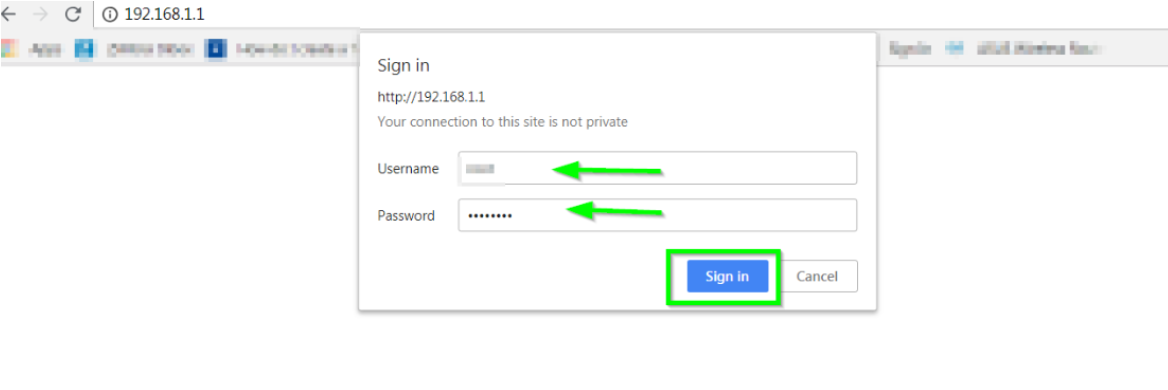
1. Přihlaste se do ovládacího panelu routeru zadáním výchozí IP adresy routeru 192.168.1.1 do adresního řádku vašeho preferovaného prohlížeče (pokud jste změnili výchozí IP adresu routeru, zadejte ji místo toho). Při připojení přes 192.168.1.1 se může URL změnit na http://192.168.1.1.
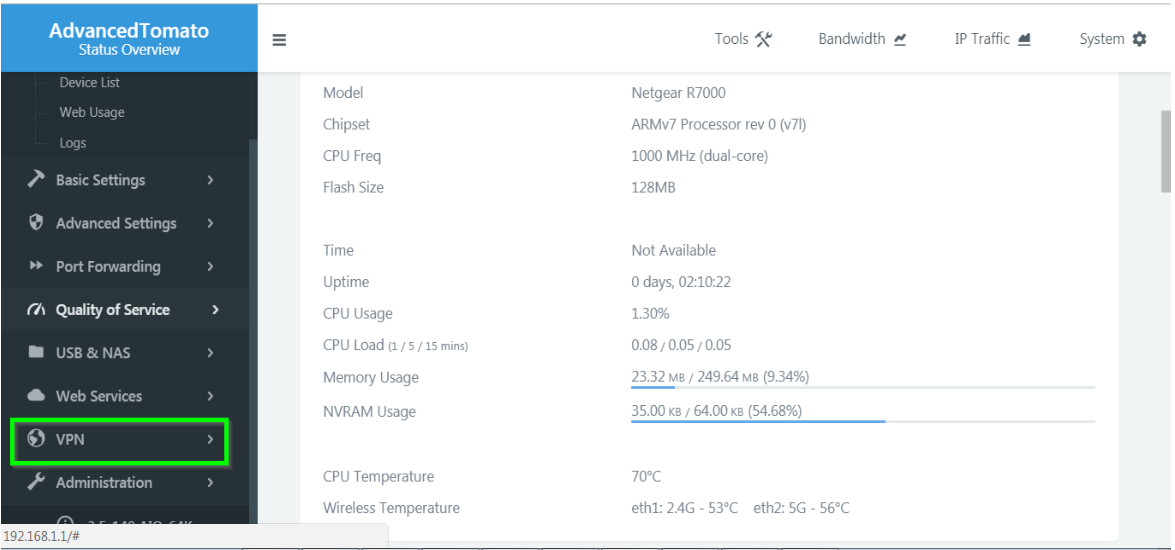
2. Budete přesměrováni do uživatelského rozhraní routeru; vyberte VPN uvedené pod Přehled stavu v nabídce vlevo:
3. Klikněte na možnost OpenVPN klient a dostanete se na jeho záložku Základní :
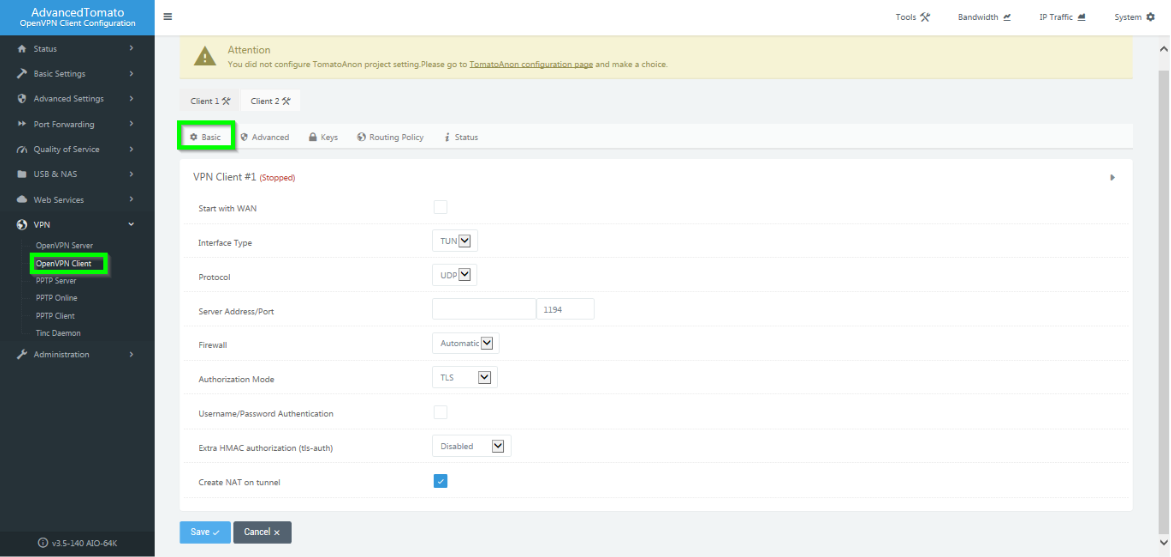
Základní
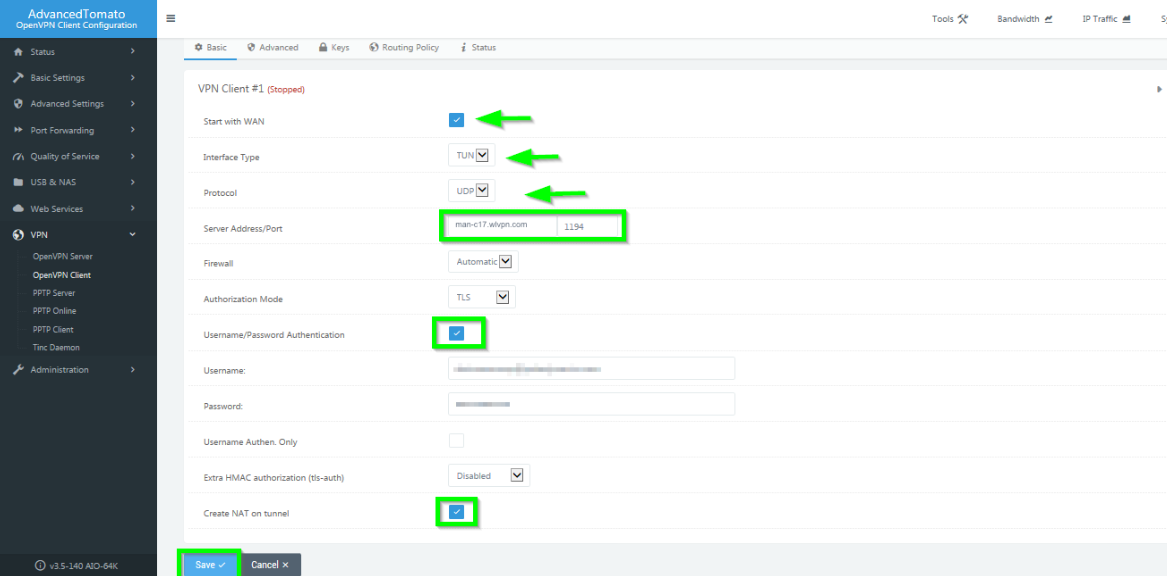
4. Podrobnější pohled na postup krok za krokem je následující. Zadejte údaje podle níže uvedeného:
Začněte s WAN: Klikněte pro povolení;
Typ rozhraní: TUN;
Protokol: UDP nebo TCP. Nicméně UDP je nejrychlejší a nejpreferovanější protokol;
Adresa/port serveru: Vyberte server z našeho seznamu serverů a zadejte adresu do tohoto pole (pro přístup k seznamu serverů se přihlaste do FastVPN uživatelského panelu svým uživatelským jménem a heslem, vyberte záložku Seznam serverů a zvolte preferovaný server)/1194.
Poznámka: Můžete také použít adresu serveru bez přípony .vpn. Např. man-c17.wlvpn.com
Firewall: Automaticky;
Režim autorizace: TLS;
Ověření uživatelského jména/hesla: Klikněte pro povolení;
Uživatelské jméno: uživatelské jméno z FastVPN uživatelského panelu
Heslo: Heslo FastVPN, dostupné z FastVPN uživatelského panelu
Extra HMAC autorizace (tls-auth): Zakázáno;
Vytvořit NAT na tunelu: Klikněte pro povolení;
Klikněte na tlačítko Uložit dole.
Pokročilé
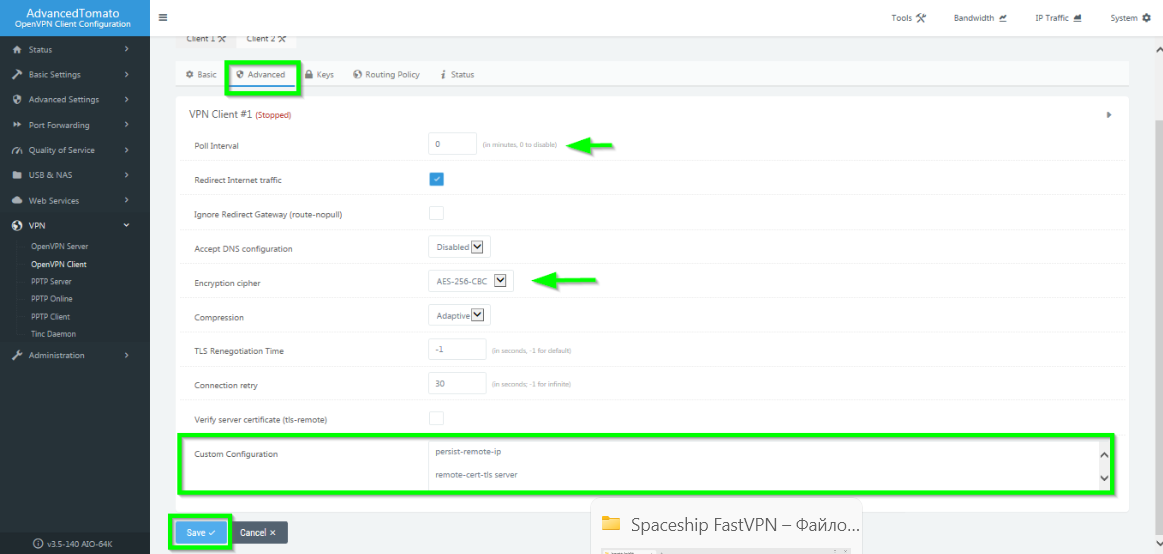
5. Přejděte na záložku Pokročilé a zadejte údaje podle níže uvedeného:
Interval dotazování: 0;
Přesměrovat internetový provoz: Zaškrtněte pro povolení;
Přijmout konfiguraci DNS: Nastavte na zakázáno;
Šifra pro šifrování: AES-256-CBC;
Kompresní metoda: Adaptivní;
Čas renegociace TLS: -1;
Opakování připojení: 30 sekund;
Ověřit certifikát serveru (tls-remote): Nechte nezaškrtnuté;
Vlastní konfigurační pole: Zkopírujte a vložte následující kurzívou psaný text do tohoto pole:
persist-remote-ip
remote-cert-tls server
keysize 256
tls-cipher TLS-DHE-RSA-WITH-AES-256-CBC-SHA:TLS-DHE-DSS-WITH-AES-256-CBC-SHA:TLS-RSA-WITH-AES-256-CBC-SHA
Klikněte na tlačítko Uložit :
Klíče
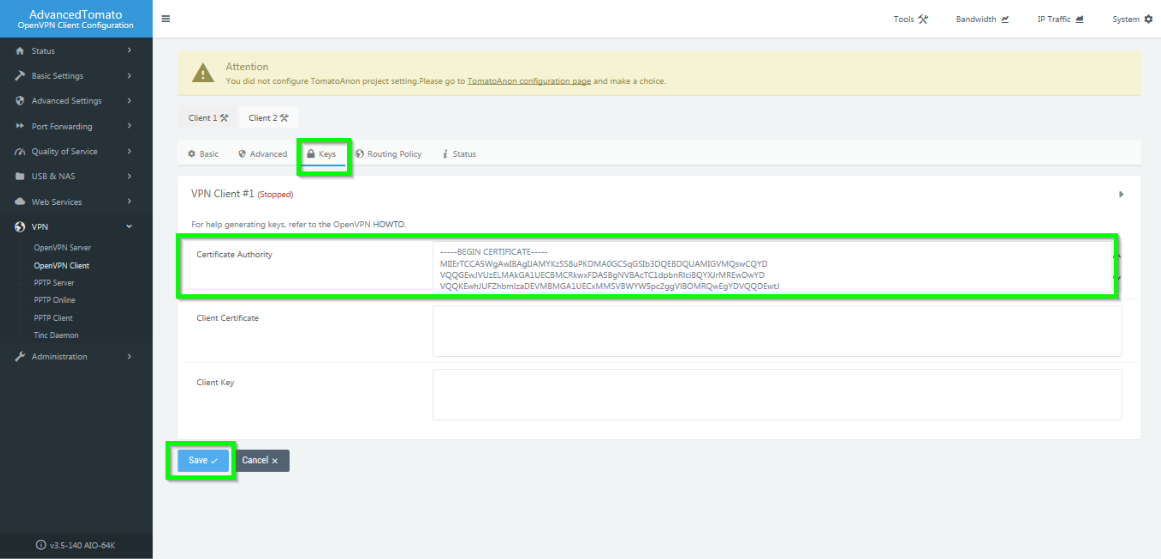
6. Zkopírujte a vložte celý obsah certifikátu do pole FastVPN Certifikační autorita a klikněte na tlačítko Uložit dole:
Směrovací politika a stav
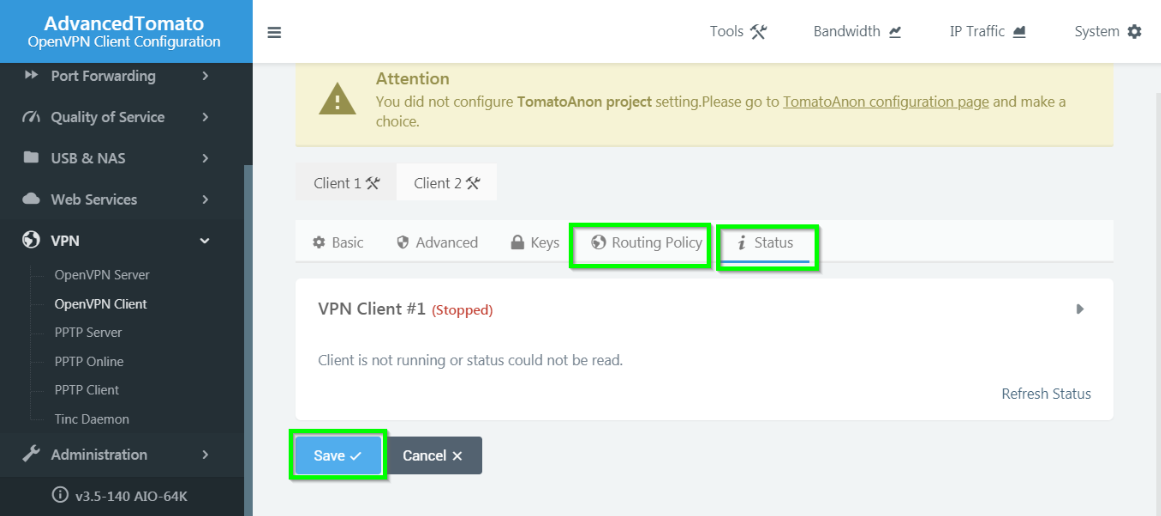
7. Ponechte výchozí nastavení pro Směrovací politiku a Stav. Klikněte na tlačítka Uložit dole na obou záložkách:
Připojení vašeho routeru Tomato k VPN
8. Vraťte se zpět na záložku Základní a klikněte na tlačítko Spustit VPN klienta pro zahájení připojení FastVPN přes protokol OpenVPN:
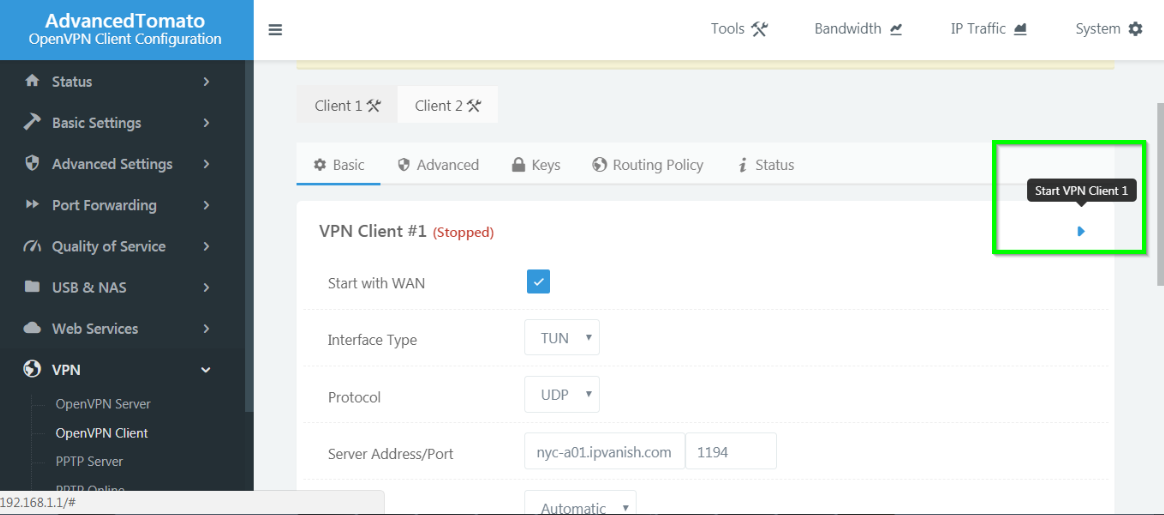
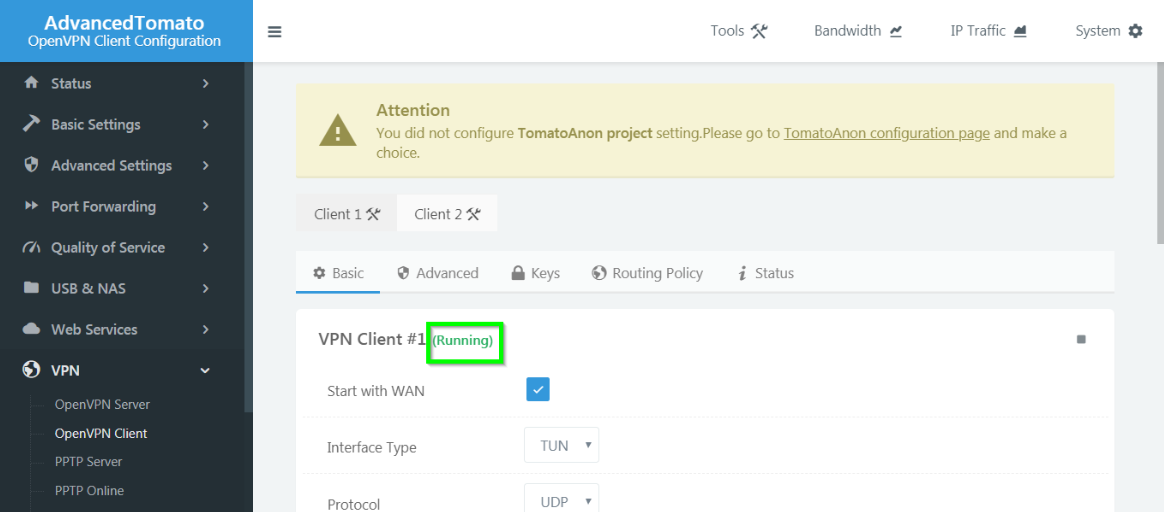
9. Stav připojení můžete ověřit podle výzvy Běží zobrazené vedle názvu VPN klient:
Odpojení VPN
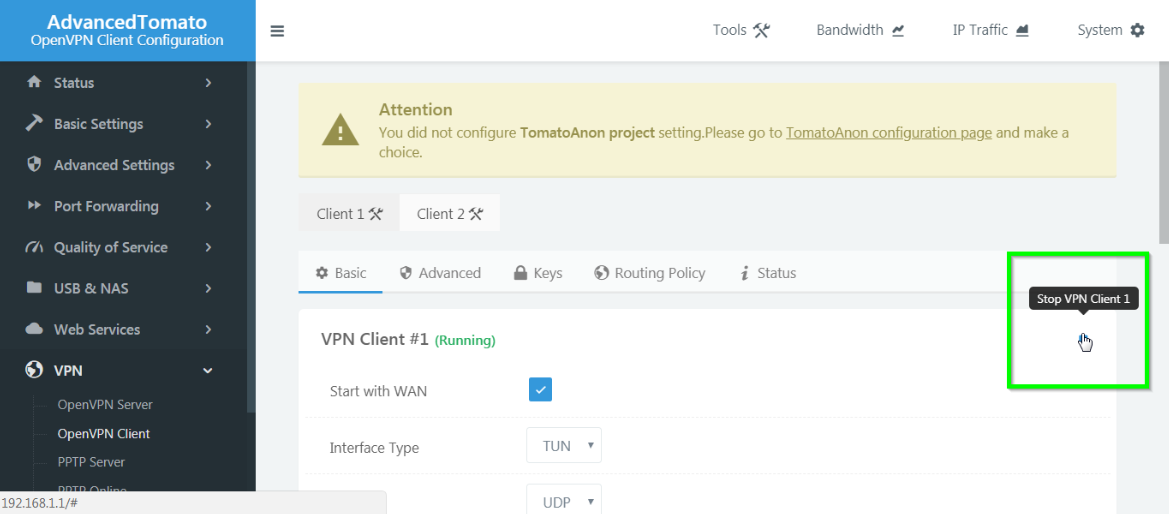
Klikněte na tlačítko Zastavit VPN klienta pro odpojení FastVPN přes protokol OpenVPN na routeru Tomato:
Pokud máte jakékoli dotazy nebo problémy s nastavením routeru Tomato, kontaktujte náš Tým podpory.