Jak stylovat formuláře v Contact Form 7 pomocí CSS ve WordPressu
Chcete, aby vaše WordPress formuláře vypadaly stejně ostře jako zbytek vašeho webu? S Contact Form 7 máte plnou kontrolu nad vzhledem formuláře pomocí CSS. Tento průvodce vás krok za krokem provede procesem stylování formulářů Contact Form 7, abyste mohli vytvořit plynulý, značkový zážitek pro vaše návštěvníky.
Proč stylovat formuláře Contact Form 7?
Contact Form 7 je jeden z nejoblíbenějších WordPress pluginů pro tvorbu formulářů – ale jeho výchozí vzhled je základní. Vlastní stylování v klasických WordPress šablonách vám umožní:
Sladit s vizuální identitou vašeho webu
Zlepšete použitelnost a přístupnost
Udělejte formuláře přívětivější a profesionálnější
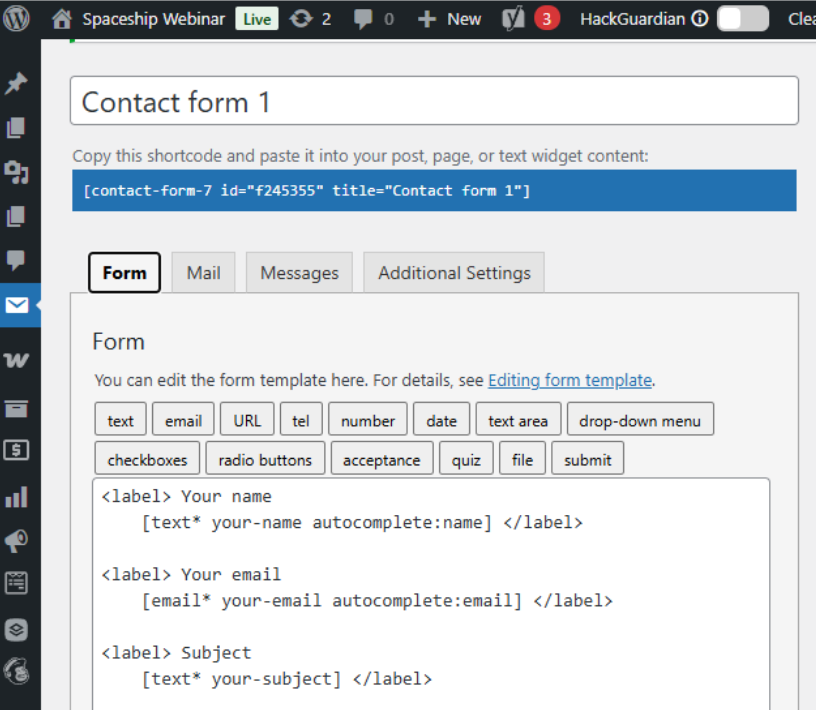
Krok 1: Identifikujte CSS selektory vašeho formuláře
Než začnete stylovat, musíte vědět, které CSS selektory cílí na prvky vašeho formuláře.
Každý formulář Contact Form 7 je obalen unikátní třídou: .wpcf7
Jednotlivé prvky jako vstupní pole, textová pole a tlačítka pro odeslání používají standardní HTML tagy
Krok 2: Přidejte vlastní CSS na svůj WordPress web
CSS můžete přidat dvěma hlavními způsoby:
Přes Customizer:
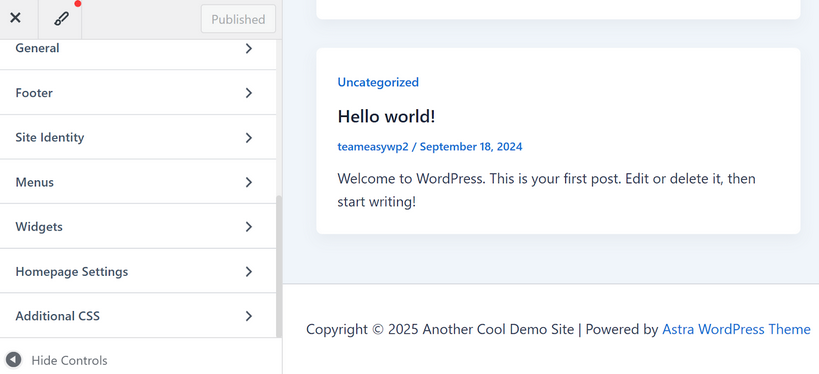
Přejděte do Vzhled > Přizpůsobit > Další CSS a vložte své styly.
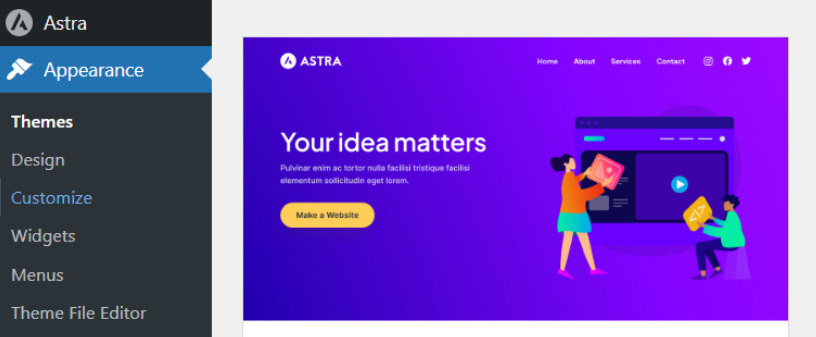
POZNÁMKA: Pro pokročilejší úpravy přidejte své CSS do souboru style.css vašeho child theme.
Krok 3: Napište své vlastní CSS
Zde je několik běžných příkladů, které vám pomohou začít, s použitím komponent „text“ a „submit“ jako příkladu:
Stylujte všechny formuláře Contact Form 7
.wpcf7 input[type="text"],
.wpcf7 textarea {
border: 2px solid #0073e6;
padding: 10px;
width: 100%;
font-size: 1em;
}
.wpcf7 input[type="submit"] {
background: #0073e6;
color: #fff;
border: none;
padding: 12px 30px;
font-size: 1em;
cursor: pointer;
transition: background 0.2s;
}
.wpcf7 input[type="submit"]:hover {
background: #005bb5;
}
Pseudo-třídy v CSS, jako je :hover, vám umožňují stylovat prvky na základě jejich stavu nebo interakce uživatele. Například pseudo-třída :hover aplikuje styly, když uživatel přesune kurzor myši nad tlačítko nebo pole. To se běžně používá ke zvýraznění tlačítek nebo změně jejich barvy při najetí, což činí vaše formuláře interaktivnějšími a vizuálně přitažlivějšími. Další užitečné pseudo-třídy zahrnují :focus (když je vstup vybrán) a :active (když je prvek právě kliknutý). Používání pseudo-tříd pomáhá zlepšit uživatelský zážitek tím, že poskytuje okamžitou zpětnou vazbu při interakci návštěvníků s vaším formulářem.
Zacílit konkrétní formulář
Každý formulář má jedinečné ID, například #wpcf7-f123-o1. Použijte jej pro stylování pouze tohoto formuláře:
#wpcf7-f123-o1 input[type="text"] {
background: #f9f9f9;
}
Nahraďte f123-o1 skutečným ID vašeho formuláře. Unikátní ID svého formuláře najdete tak, že zobrazíte stránku, kde je váš Contact Form 7 formulář vložen, kliknete pravým tlačítkem na formulář a v prohlížeči zvolíte „Prozkoumat“ (nebo „Prozkoumat prvek“). Hledejte <div> s třídou .wpcf7 – ID se zobrazí jako něco jako id="wpcf7-f123-o1" v HTML kódu. Toto ID použijte ve svém CSS selektoru pro zacílení pouze tohoto konkrétního formuláře.
Krok 4: Použijte vestavěné třídy Contact Form 7
Contact Form 7 automaticky přidává třídy k prvkům, což usnadňuje jejich zacílení. Například:
.wpcf7-form-control – Všechny ovládací prvky formuláře
.wpcf7-submit – Tlačítko pro odeslání
Ve formulářovém editoru můžete také přidat vlastní třídy pro ještě větší kontrolu.
Příklad
.wpcf7-form-control.wpcf7-text {
border-radius: 5px;
}
.wpcf7-submit {
font-weight: bold;
letter-spacing: 1px;
}
Krok 5: Náhled a úpravy
Po uložení CSS obnovte svůj web, abyste viděli změny. Pomocí inspektoru v prohlížeči dolaďte styly v reálném čase před jejich zkopírováním na web. Po provedení změn nezapomeňte vymazat cache webu, aby byly aktualizace viditelné pro návštěvníky.
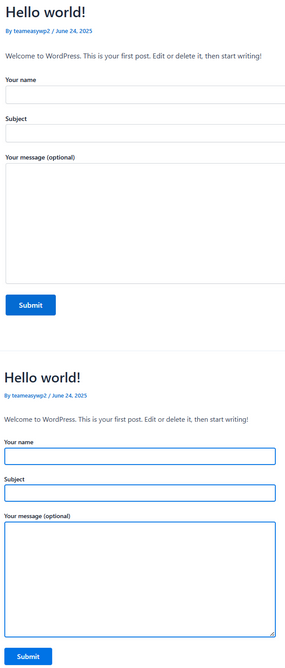
Zde jsou příklady formuláře před a po na demo webu, kde jsme použili CSS kód z kroku 3, abychom udělali rámečky kolem každého pole modré.
Rychlé tipy pro lepší stylování formulářů
Dbejte na přístupnost: Zajistěte dobrý kontrast barev a čitelné velikosti písma
Používejte mezery: Přidejte padding a okraje pro čistý a přehledný vzhled
Zvýrazněte chyby: Stylujte chybové zprávy jasnou barvou (například červenou), aby uživatelé mohli snadno opravit chyby
Testujte na mobilu: Ujistěte se, že vaše formuláře vypadají dobře na všech zařízeních
Řešení problémů
Pokud se vaše styly nezobrazují, zkuste tyto kroky:
Vymažte cache prohlížeče a webu – Někdy uložené soubory brání zobrazení nového CSS. Pokud používáte cache plugin nebo spravovaný hosting, vymažte i tyto cache.
Zkontrolujte problémy se specifičností CSS – Pokud se vaše styly neaplikují, zkuste udělat selektory specifičtější, abyste přepsali existující styly.
Ujistěte se, že upravujete správný CSS soubor nebo sekci – Dvakrát zkontrolujte, že přidáváte svůj kód na správné místo, například do panelu Další CSS, do style.css vašeho child theme nebo do pluginu pro vlastní CSS.
Zkontrolujte CSS třídy na překlepy nebo chyby – Hledejte překlepy v názvech tříd, zbytečné mezery nebo omylem použitou špatnou třídu. Také ověřte, že třída, kterou cílíte, skutečně existuje v HTML vašeho formuláře.
Zkontrolujte duplicitní nebo konfliktní třídy – Ujistěte se, že třída, kterou používáte, není již použita jinde s jinými styly, které by mohly vaše změny přepsat.
Dodržujte obecné osvědčené postupy – Používejte jasné a konzistentní pojmenování tříd, každé CSS pravidlo ukončete středníkem a vždy správně uzavírejte bloky kódu složenou závorkou (}).
Pečlivé zkontrolování vašeho kódu na tyto běžné problémy pomůže zajistit, že se vaše vlastní styly zobrazí správně na vašem webu.
Příklad: Kompletní vlastní CSS pro formulář Contact Form 7
.wpcf7 input[type="text"],
.wpcf7 input[type="email"],
.wpcf7 textarea {
border: 1px solid #ccc;
border-radius: 4px;
padding: 8px 12px;
margin-bottom: 16px;
width: 100%;
box-sizing: border-box;
}
.wpcf7 input[type="submit"] {
background-color: #28a745;
color: white;
border: none;
border-radius: 4px;
padding: 10px 24px;
font-size: 1.1em;
cursor: pointer;
}
.wpcf7 input[type="submit"]:hover {
background-color: #218838;
}
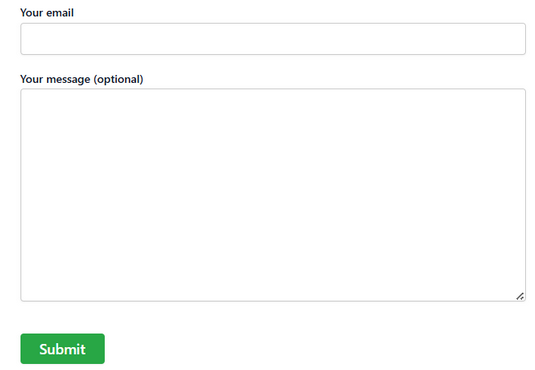
Zde je příklad formuláře stylovaného výše uvedeným CSS kódem. Tento CSS kód upravuje vzhled několika klíčových prvků ve vašem Contact Form 7 formuláři. Zaměřuje se na všechna textová pole, pole pro e-mail a textová pole, kterým dává světle šedý okraj, zaoblené rohy, pohodlné odsazení a konzistentní šířku pro čistý, moderní vzhled.
Kód také styluje tlačítko pro odeslání zeleným pozadím, bílým textem, zaoblenými hranami a tučným, snadno čitelným písmem. Když uživatelé najedou na tlačítko pro odeslání, pozadí se změní na tmavší zelenou, což poskytuje interaktivní zpětnou vazbu.
Přidání CSS: klasické šablony vs blokové šablony
Kroky v tomto průvodci pro stylování formulářů Contact Form 7 pomocí CSS jsou určeny pro klasické šablony ve WordPressu. Klasické šablony, jako je populární Astra, používají Customizer, kde můžete snadno přidat vlastní CSS v sekci „Další CSS“. Díky tomu je jednoduché stylovat vaše formuláře a vidět změny živě.
Pokud však váš web používá blokovou šablonu (někdy nazývanou Full Site Editing nebo FSE šablona), postup je jiný. Blokové šablony ne vždy obsahují Customizer nebo pole „Další CSS“ ve výchozím nastavení. Místo toho použijete Editor webu k provádění změn designu. Zatímco můžete upravovat globální styly pro barvy, typografii a rozvržení, přidání libovolného vlastního CSS není vždy v uživatelském rozhraní dostupné.
Co dělat, pokud používáte blokovou šablonu
Otevřete WordPress administraci a přejděte do Vzhled > Editor (Editor webu).
V Editoru webu hledejte panel Styly (ikona polostínovaného kruhu).
Některé blokové šablony nyní nabízejí možnost „Další CSS“ v panelu Styly, ale záleží to na vaší šabloně a verzi WordPressu.
Pokud nevidíte možnost přidat vlastní CSS, můžete použít plugin jako WPCode pro přidání vlastního CSS napříč celým webem. WPCode je vhodný pro začátečníky a funguje s jakoukoli šablonou, takže můžete stylovat své formuláře i v případě, že vaše šablona nepodporuje přímou úpravu CSS v rozhraní. Jen mějte na paměti, že instalace tohoto pluginu může ovlivnit styl ostatních již existujících formulářů na vašem webu.
Další zdroje
Stylování formulářů Contact Form 7 je jednoduchý, ale účinný způsob, jak pozvednout uživatelský zážitek na vašem webu. Stačí pár řádků CSS a vaše formuláře budou vypadat a působit jako přirozená součást vaší značky.