Jak používat Správce souborů v cPanelu
Správce souborů je vestavěný nástroj v cPanelu, který vám umožňuje spravovat soubory a složky vašeho webu přímo z prohlížeče. Díky němu můžete kopírovat, přesouvat, organizovat, mazat soubory a upravovat jejich oprávnění.
Přístup ke Správci souborů
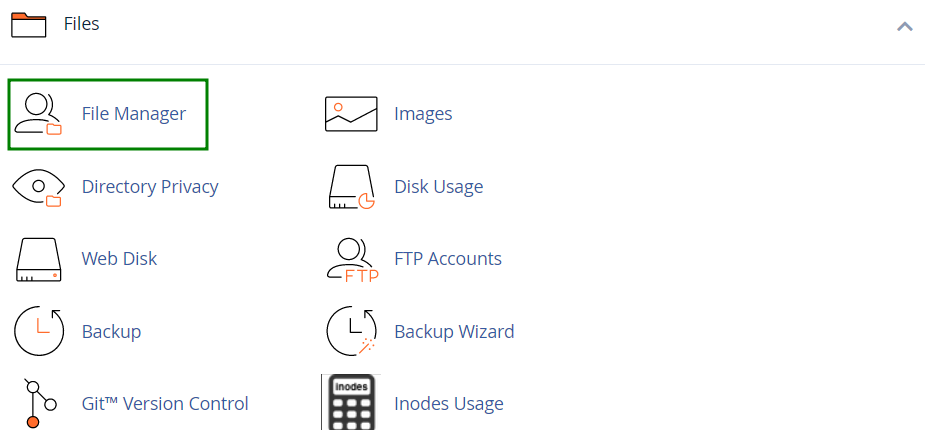
Ke Správci souborů se dostanete přes svůj účet Spaceship > nabídku Hosting Manager > Přejít do cPanelu > přejděte do sekce Soubory > nabídka Správce souborů:
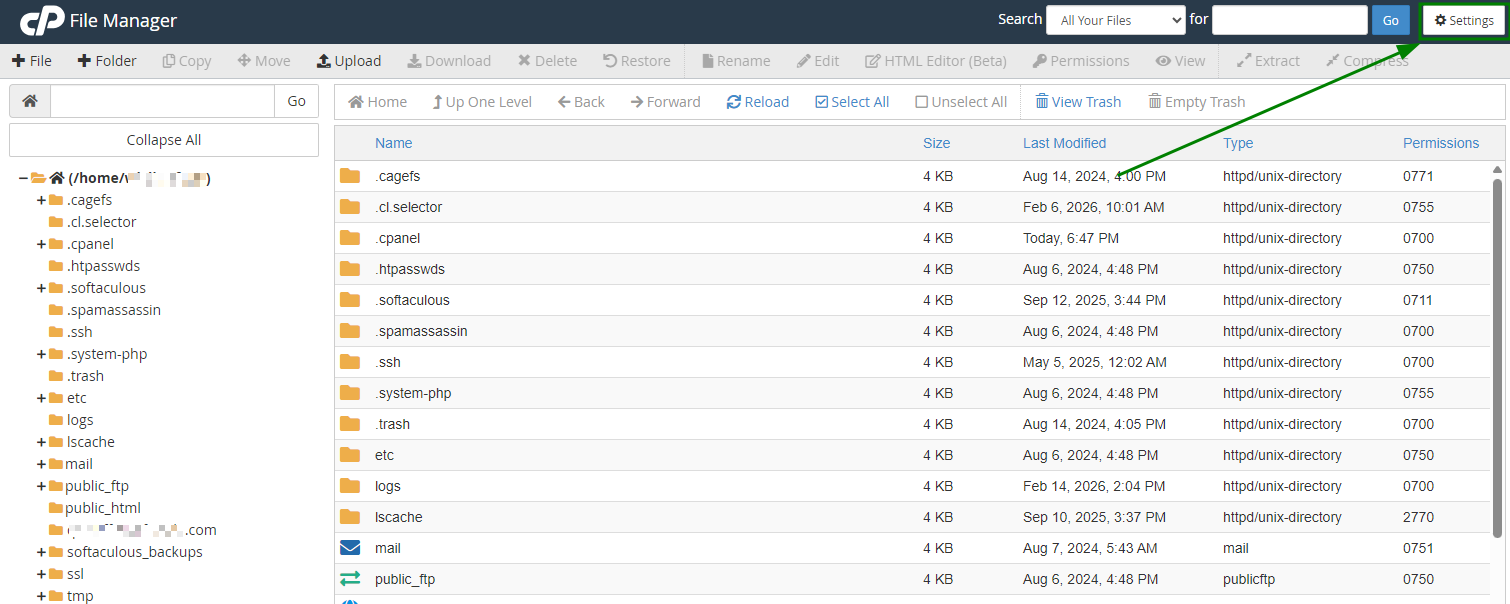
Ve výchozím nastavení se Správce souborů otevírá v adresáři /home/user. V případě potřeby můžete výchozí adresář změnit pomocí možnosti Nastavení:
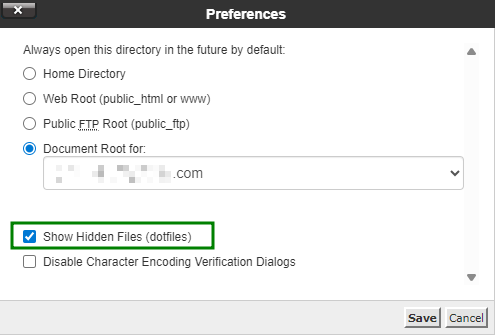
Ve stejném okně Nastavení máte také možnost povolit Zobrazit skryté soubory (dotfiles). Aktivací této funkce se ve Správci souborů zobrazí skryté systémové soubory, jako je .htaccess:
Chcete-li najít kořenovou složku dokumentů pro vaši doménu, vyhledejte složku pojmenovanou stejně jako vaše doména. Do tohoto adresáře byste měli nahrávat soubory pro web spojený s danou doménou:
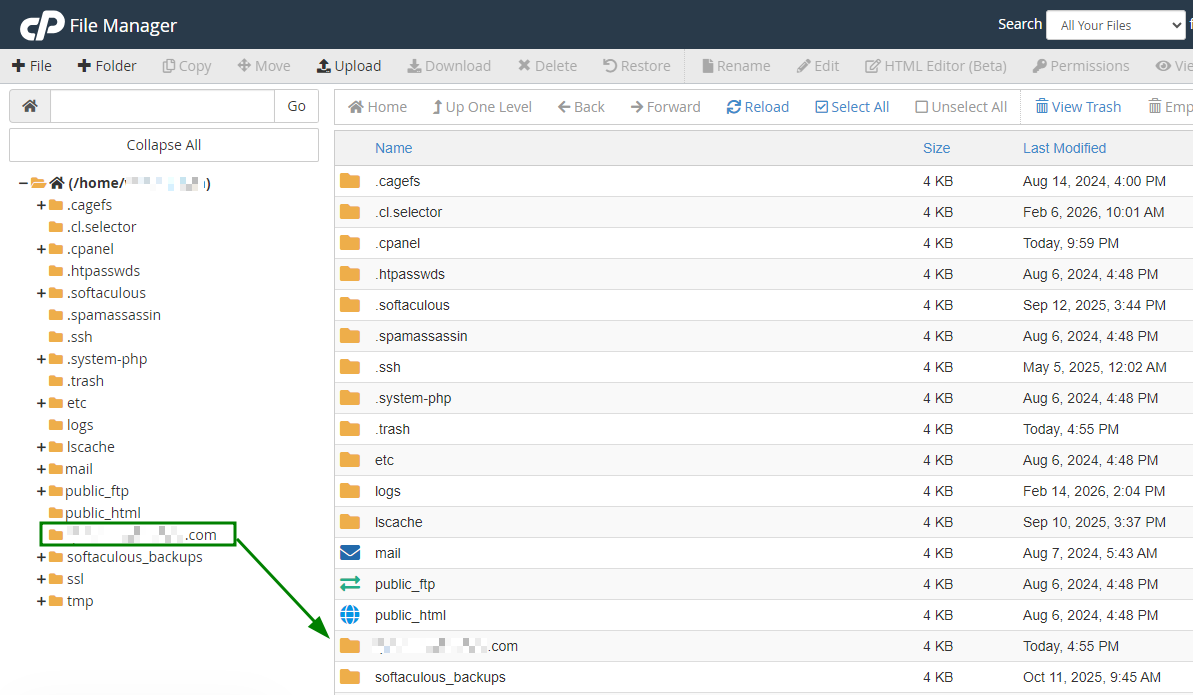
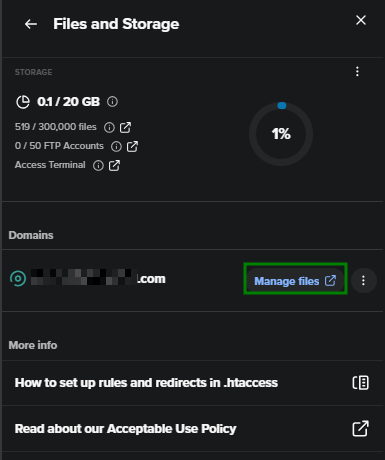
Je také možné otevřít kořenovou složku domén hostovaných na vašem účtu ve Správci souborů. Pro tento účel klikněte na tlačítko Spravovat vedle hostingového předplatného > nabídka Soubory a úložiště > klepněte na tlačítko Spravovat soubory naproti příslušné doméně a budete přesměrováni do její kořenové složky v rozhraní Správce souborů:
Poznámka: Existuje možnost změnit kořenový adresář dokumentů pro domény hostované na Spaceship Shared Hosting. Můžete to provést v nabídce Hosting Manager > klikněte na tlačítko Spravovat vedle příslušného hostingu (mělo by se zobrazit rozdělené okno) > nabídka Advanced > Kořenová složka dokumentů :
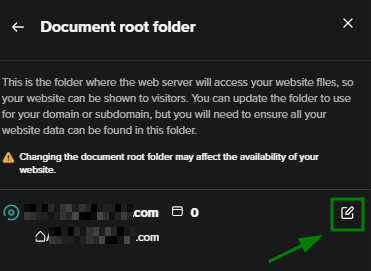
Po změně kořenové složky dokumentů pro doménu nejsou vytvořené weby automaticky přesunuty do nové složky. Je nutné soubory přesunout ručně.
Rozhraní Správce souborů
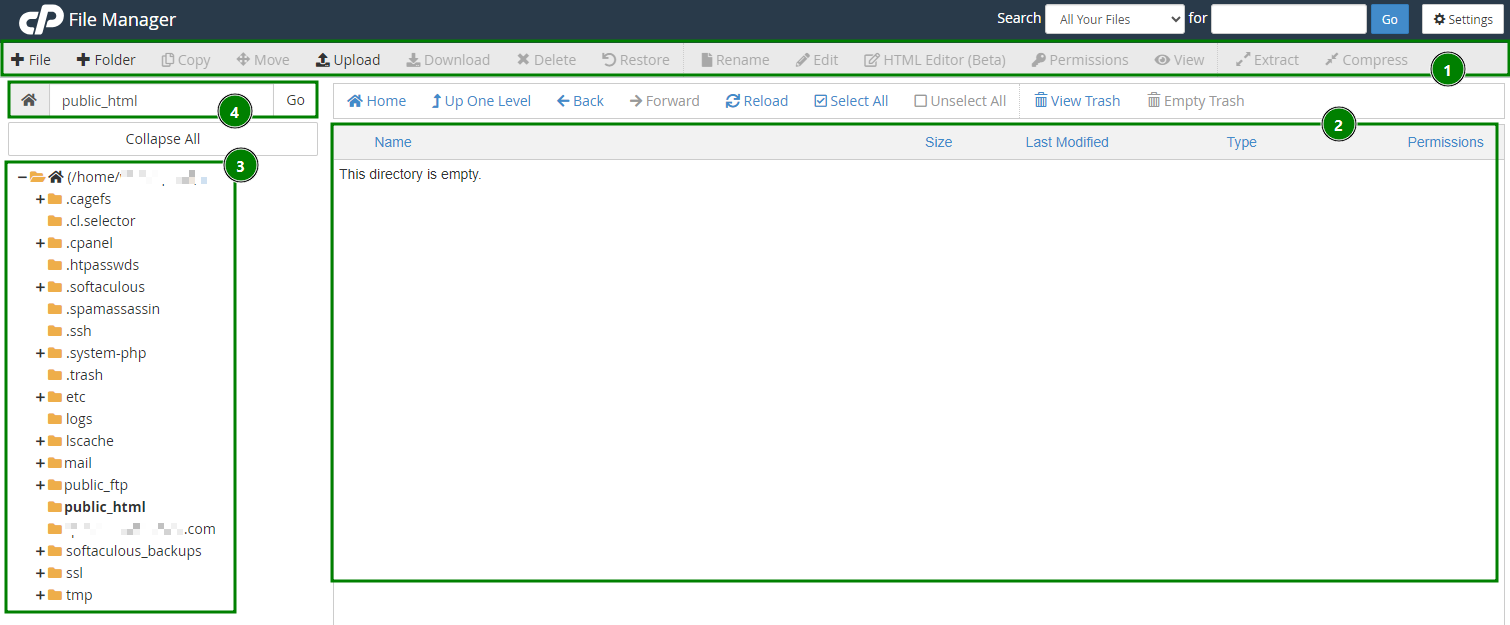
Rozhraní Správce souborů se skládá ze čtyř hlavních sekcí:
Panel nástrojů – obsahuje základní nástroje pro správu souborů, jako je vytváření nových složek, mazání souborů, nahrávání nebo stahování obsahu a další běžné akce.
Oblast seznamu souborů – zobrazuje soubory a složky umístěné ve vybraném adresáři.
Poznámka: Pokud adresář neobsahuje žádné soubory ani složky, zobrazí se v této oblasti zpráva „Tento adresář je prázdný“.Navigační panel – umožňuje procházet různé složky a přepínat mezi adresáři v rámci vašeho účtu.
Pole aktuálního adresáře – zobrazuje cestu ke složce, kterou právě prohlížíte, což vám pomáhá sledovat vaši polohu ve struktuře souborů.
Funkce Správce souborů
V nabídce jsou k dispozici následující možnosti správy souborů:
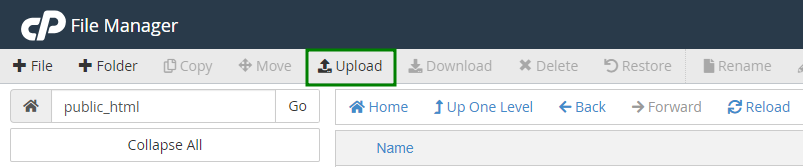
Nahrát
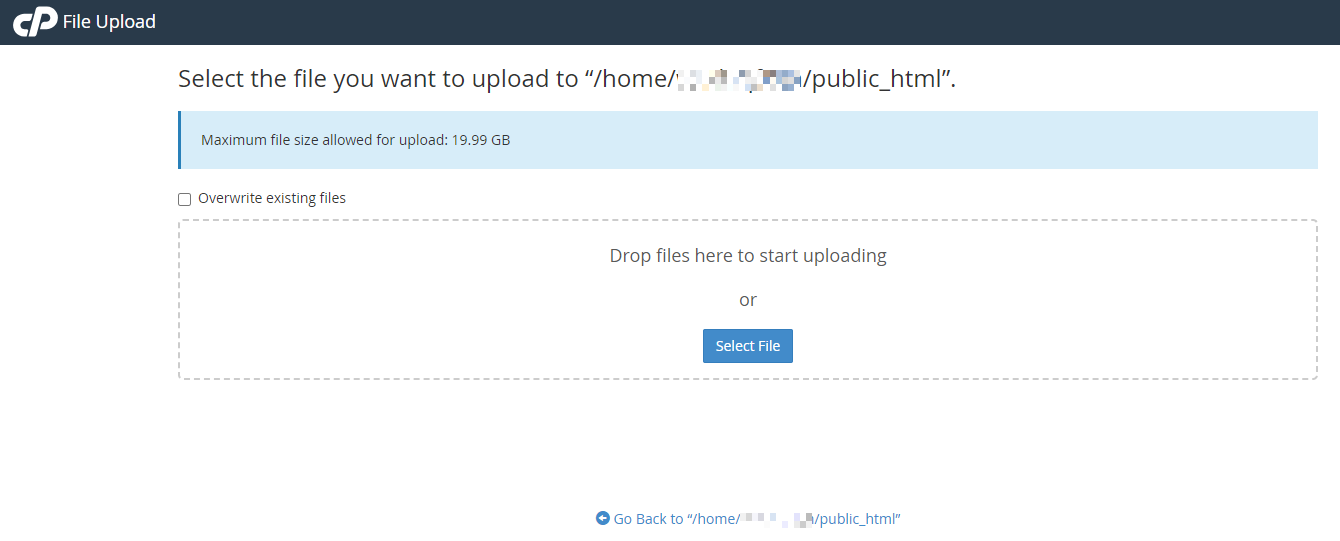
Vyberte soubor, který chcete importovat do cPanelu ze svého počítače, a klikněte na Otevřít/Vybrat na svém PC, nebo jej jednoduše přetáhněte do okna pro nahrávání:
Kopírovat/Přesunout
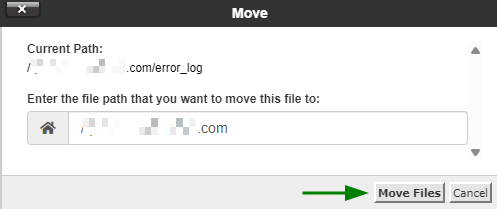
Vyberte soubor(y), které chcete kopírovat/přesunout, a klikněte na ikonu Kopírovat nebo Přesunout . Pro výběr více souborů podržte klávesu Ctrl+Command:

Po dokončení potvrďte cílové umístění v potvrzovacím okně:
Vytvořit nový soubor/složku
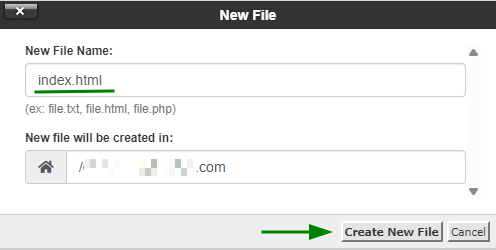
Chcete-li vytvořit nový soubor/složku, otevřete složku/adresář, kde má být soubor/složka umístěna. Klikněte na ikonu +Soubor/+Složka, pojmenujte soubor a potvrďte akci v dialogovém okně:

Smazat
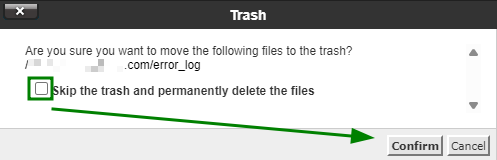
Vyberte soubor(y), které chcete odstranit, a klikněte na ikonu Smazat . Potvrďte akci v dialogovém okně:

Smazané soubory jsou přesunuty do systémové složky .trash. Pokud chcete soubor(y) odstranit trvale, zvolte možnost „Přeskočit koš a trvale smazat soubory“:
Poznámka: Soubory zůstanou ve složce koše po dobu 90 dní. Po této době budou automaticky odstraněny ze serveru.
Obnovit
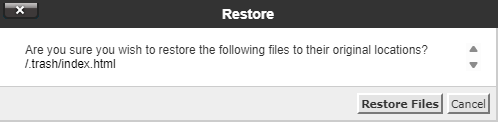
Chcete-li obnovit soubor, přejděte do složky .trash umístěné v adresáři /home/user/. Vyberte požadovaný soubor(y) a klikněte na ikonu Obnovit:

Přejmenovat
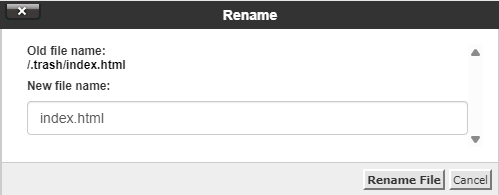
Otevřete složku obsahující soubor(y), které chcete přejmenovat. Vyberte soubor(y) a klikněte na ikonu Přejmenovat:

Poté se zobrazí potvrzovací okno:
Upravit
Vyberte soubor, který chcete upravit, a klikněte na ikonu Upravit. Tím se otevře editor souborů:


Komprimovat
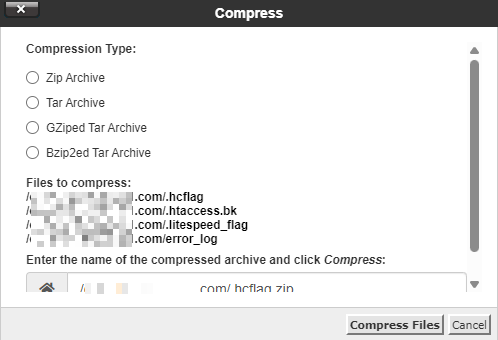
Uložení více souborů do jednoho archivu je užitečné pro vytváření záloh, přesun dat do jiného adresáře a zmenšení velikosti souborů. Komprimované soubory zabírají méně místa na disku a stahují se rychleji přes internet. Data můžete komprimovat do jednoho archivu .zip, .gz nebo .bz2.
Pro komprimaci souborů klikněte na tlačítko Komprimovat , vyberte požadovaný typ komprese a komprimujte soubory:

Rozbalit
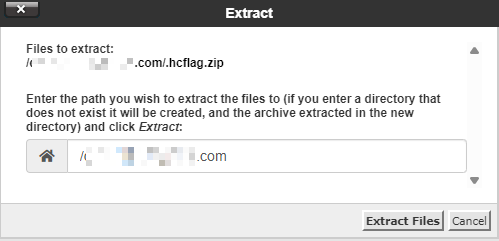
Komprimované soubory nebo archivy lze rozbalit kliknutím na tlačítko Rozbalit :

Systém navrhne rozbalit soubor do stejného adresáře, ve kterém se aktuálně nachází. Můžete však zvolit jiný adresář zadáním jeho cesty v dialogovém okně:
Změnit oprávnění
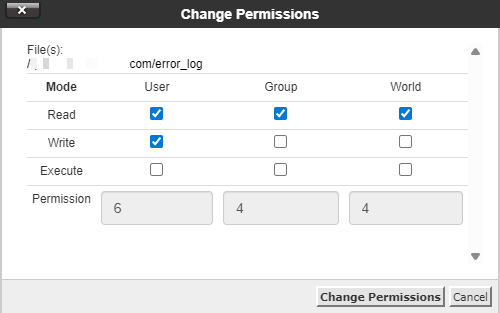
Vyberte soubor nebo složku, u které chcete změnit oprávnění, a klikněte na ikonu Oprávnění, nebo na ni klikněte pravým tlačítkem a zvolte Změnit oprávnění z rozbalovací nabídky:

Nastavte požadované hodnoty oprávnění a klikněte na Změnit oprávnění pro uložení změn:
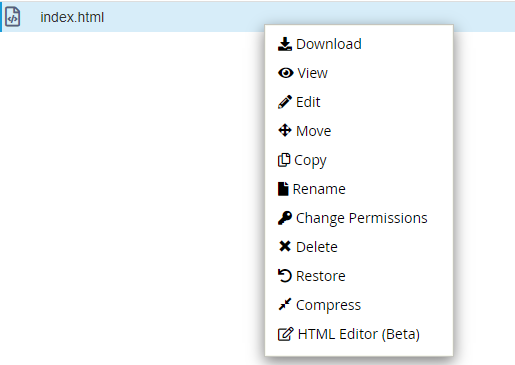
Poznámka: Výše uvedené funkce Správce souborů lze také najít kliknutím pravým tlačítkem na vybraný soubor(y) a výběrem příslušné možnosti z rozbalovacího seznamu: