Jak nastavit dvoufaktorové ověřování (2FA) ve Spacemail
Dvoufaktorové ověření (2FA) přidává další vrstvu zabezpečení vašemu účtu Spacemail tím, že při přihlašování vyžaduje druhý krok nad rámec samotného hesla. Tento průvodce vysvětluje, jak nastavit 2FA pro e-mail pomocí dvou dostupných metod: U2F (Universal 2nd Factor) a TOTP (časově omezené jednorázové heslo).
Jak nastavit U2F 2FA ve Spacemailu:
U2F je otevřený autentizační standard, který zvyšuje a zjednodušuje dvoufaktorové ověření pomocí fyzického bezpečnostního klíče, například Yubikey, a je kompatibilní s Chrome, Firefoxem a Edge. Postupujte podle těchto kroků:
1. Přihlaste se ke svému účtu Spacemail.
2. Klikněte na tlačítko Nastavení v pravém horním rohu.
3. Přejděte do Centra zabezpečení a stiskněte Spustit Centrum zabezpečení.
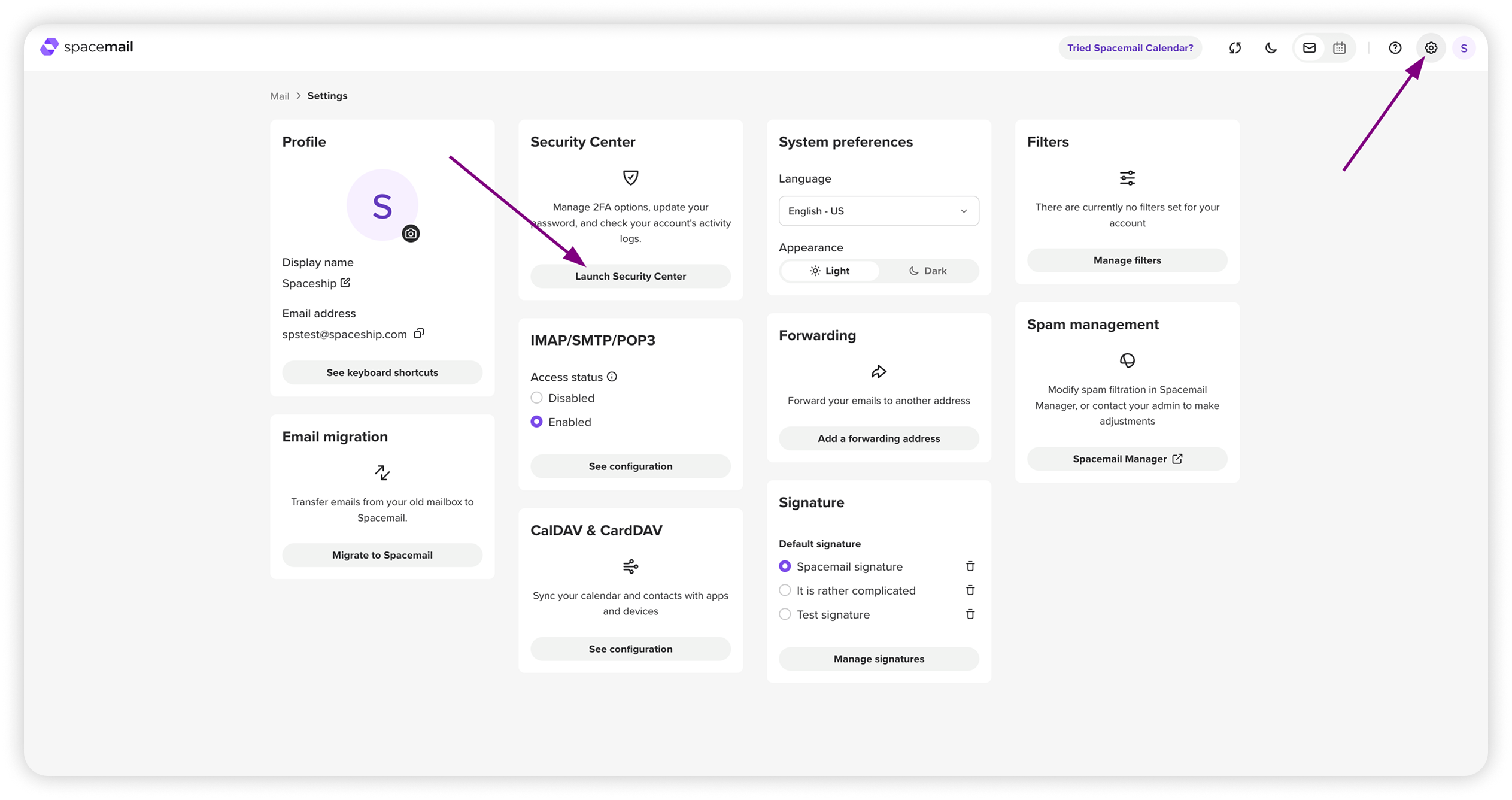
4. Klikněte na Nastavit 2FA.
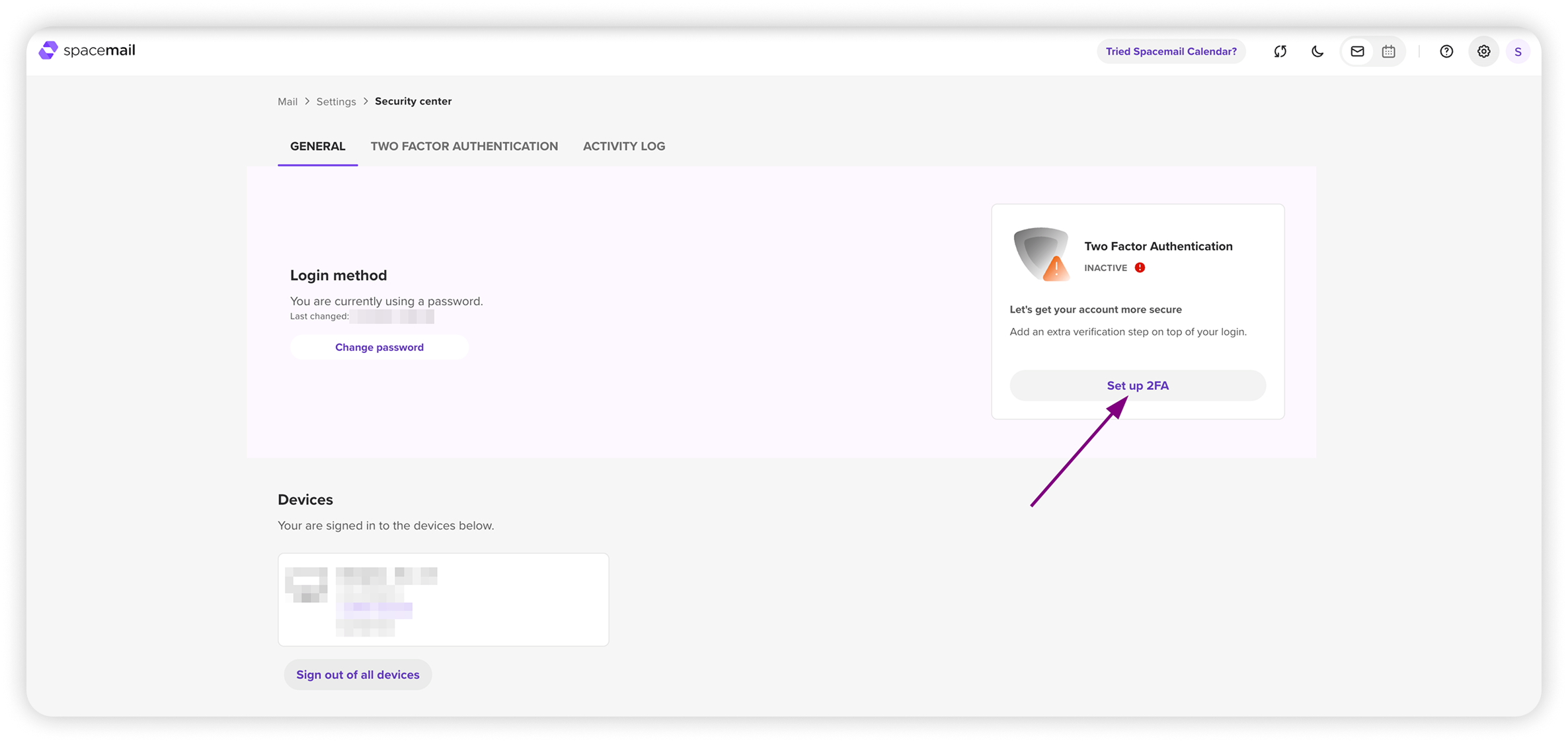
5. V možnostech nastavení 2FA najděte Ověření zařízení – U2F a klikněte na tlačítko Nastavit vedle něj.
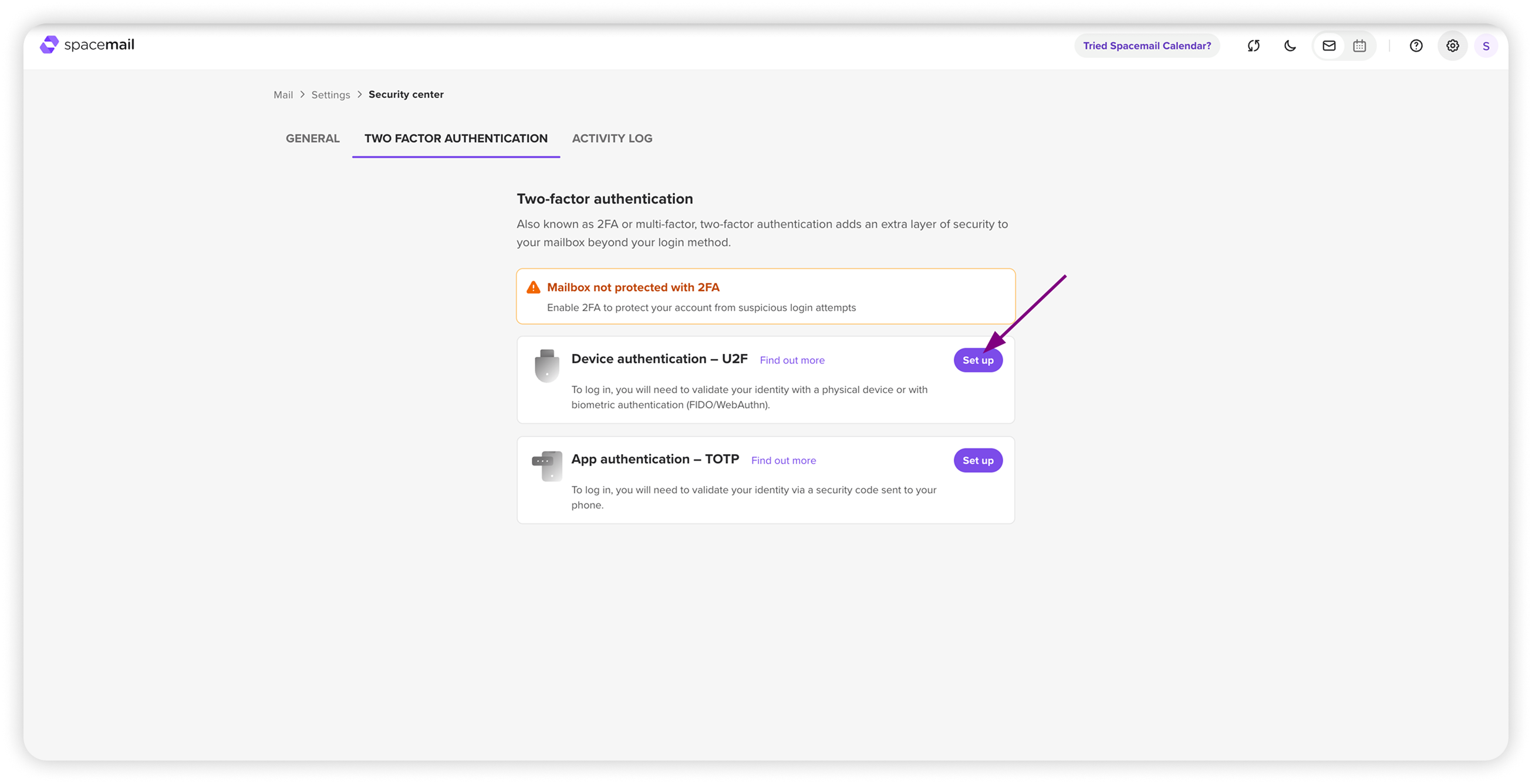
6. Systém vás vyzve k pojmenování zařízení. Zadejte název pro svůj bezpečnostní klíč a klikněte na Registrovat.
7. Vložte svůj fyzický bezpečnostní klíč do USB portu.
8. Potvrďte připojení zařízení kliknutím na Povolit v okně prohlížeče.
9. Po registraci klíče budete vyzváni k uložení záložních kódů pro případ, že bezpečnostní klíč nebude k dispozici.
Poté se zobrazí zpráva o úspěchu, která potvrdí, že zařízení bylo zaregistrováno a přidáno na kartu Dvoufaktorové ověření v Centru zabezpečení.
POZNÁMKA: Další zařízení U2F můžete přidat tak, že přejdete na kartu Dvoufaktorové ověření a kliknete na Přidat zařízení.
Jak nastavit TOTP 2FA ve Spacemailu:
TOTP vytváří jedinečný, dočasný kód na vašem mobilním zařízení, který je platný po dobu 30–60 sekund. Pro tento účel můžete použít ověřovací aplikace jako Google Authenticator, Authy nebo Duo. Zde je postup nastavení:
1. Přihlaste se ke svému účtu Spacemail.
2. Klikněte na tlačítko Nastavení v pravém horním rohu.
3. Přejděte do Centra zabezpečení a stiskněte Spustit Centrum zabezpečení.
4. Klikněte na Nastavit 2FA.
5. Najděte Ověření aplikací – TOTP a klikněte na tlačítko Nastavit vedle něj.
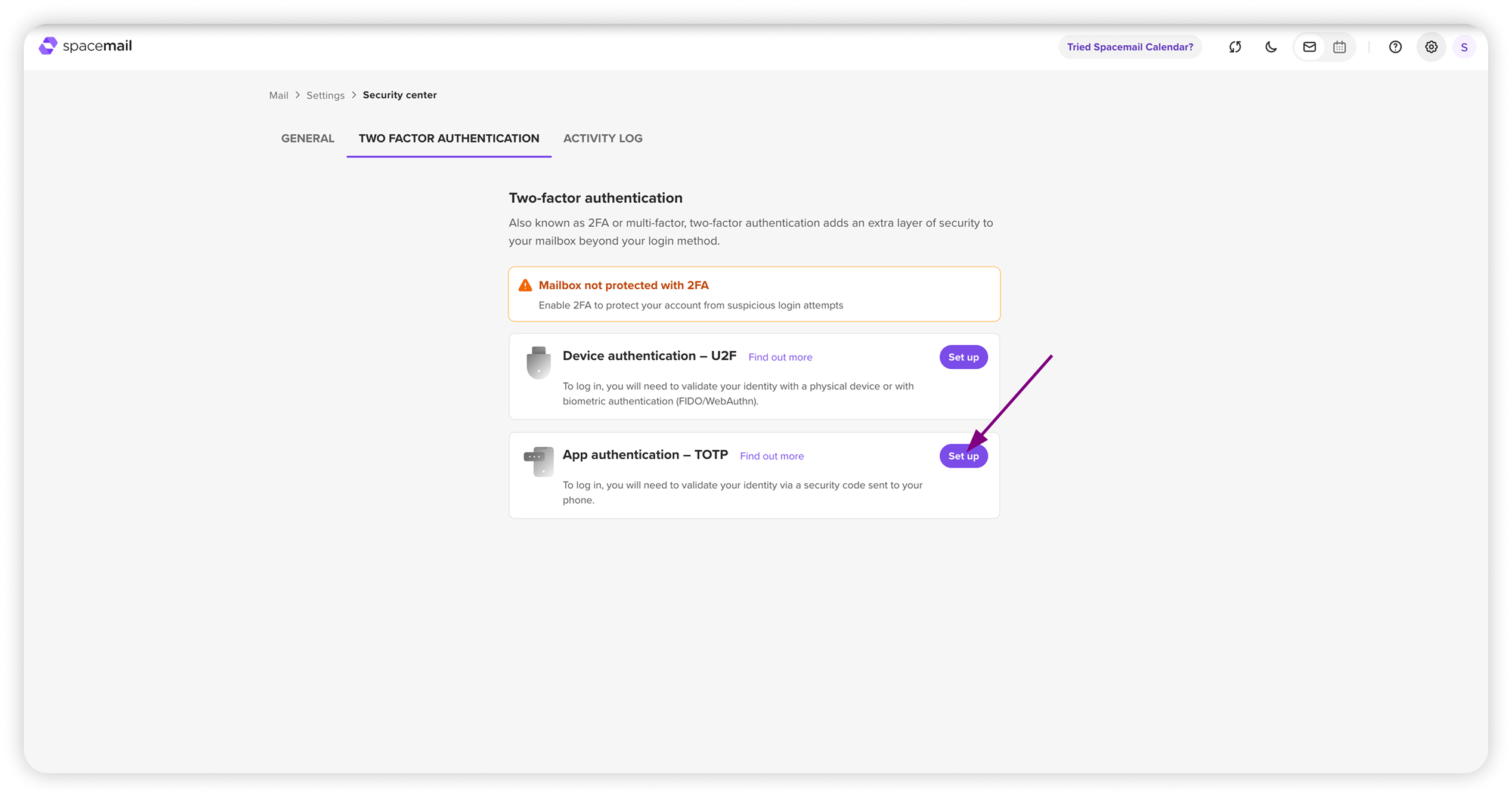
6. Na obrazovce se zobrazí QR kód. Otevřete na svém telefonu preferovanou dvoufaktorovou ověřovací aplikaci a naskenujte QR kód.
7. Po naskenování aplikace zobrazí 6místný kód. Zadejte tento kód do Spacemailu pro dokončení nastavení.
Uložte si záložní kódy zobrazené v dalším vyskakovacím okně. Klikněte na Hotovo a budete přesměrováni zpět na stránku Dvoufaktorové ověření, kde bude TOTP uvedeno jako aktivní metoda 2FA pro váš účet.
Záložní kódy:
Záložní kódy jsou nezbytné v případě, že ztratíte přístup ke svému 2FA zařízení. Vždy je uchovávejte na bezpečném místě, protože vám umožní znovu získat přístup k účtu Spacemail bez ověřovacího zařízení.
Povolením 2FA výrazně zvýšíte zabezpečení svého účtu Spacemail a ztížíte neoprávněným uživatelům přístup. Vyberte si metodu 2FA, která vám nejvíce vyhovuje, ať už jde o fyzický bezpečnostní klíč nebo časově omezený kód prostřednictvím aplikace.