Outlook-এ Spacemail কীভাবে সেটআপ করবেন
এই নিবন্ধে, আমরা দেখাবো কিভাবে আপনি আপনার Spacemail মেইলবক্স IMAP/POP3 প্রোটোকল ব্যবহার করে Outlook ক্লায়েন্টে সেটআপ করতে পারেন।
Outlook for Windows (নতুন Outlook নামেও পরিচিত) হলো মাইক্রোসফটের সর্বশেষ ইমেইল ক্লায়েন্ট এবং এটি Windows 10 ও 11-এ প্রি-লোডেড Windows Mail ও Calendar অ্যাপের পরিবর্তে আসবে। ২০২৪ সালের শেষের দিকে এটি Windows 11-এর ডিফল্ট মেইল অ্যাপ হিসেবেও আসবে।
নোট: এই নিবন্ধে আমরা spptest@spaceship.com উদাহরণ ঠিকানা হিসেবে ব্যবহার করেছি।
স্বয়ংক্রিয় সেটআপ
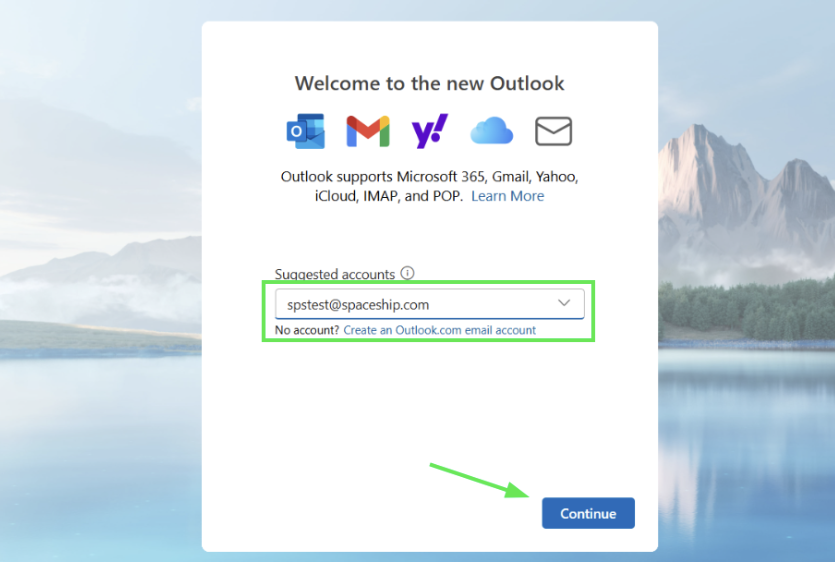
Spacemail সার্ভিস Outlook-এর জন্য একটি অটো-কনফিগ ফিচার সমর্থন করে, যা আপনাকে স্বয়ংক্রিয়ভাবে ইমেইল অ্যাকাউন্ট সেটআপ করতে দেয়।
প্রয়োজনীয় ঘরে আপনার মেইলবক্সের নাম ও পাসওয়ার্ড লিখুন এবং ইমেইল ক্লায়েন্টকে সেটআপ করতে দিন:


ম্যানুয়াল সেটআপ
নতুন ইমেইল অ্যাকাউন্ট যোগ করতে নিচের ধাপগুলো অনুসরণ করুন:
ধাপ ১. আপনার Windows ডিভাইসে Outlook (new) অ্যাপ্লিকেশনটি খুলুন।
ধাপ ২. আপনি যে Spacemail ঠিকানাটি যোগ করতে চান সেটি লিখুন।

টিপস: যদি আপনার নতুন Outlook-এ ইতিমধ্যে একটি ইমেইল অ্যাকাউন্ট সেটআপ করা থাকে, তাহলে ক্লিক করুন View > View settings, তারপর Accounts ট্যাব > Add account নির্বাচন করুন:

ধাপ ৩. পাসওয়ার্ড ফিল্ডে আপনার Spacemail মেইলবক্সের পাসওয়ার্ড লিখুন।
আপনি যদি কোনোভাবে আপনার পাসওয়ার্ড মনে না রাখতে পারেন, তাহলে নিচের টিউটোরিয়াল
ধাপ ৪. আপনার প্রোটোকল নির্বাচন করুন: POP3 অথবা IMAP।
নতুন Outlook উভয় POP3 এবং IMAP প্রোটোকল সমর্থন করে।
POP3 মানে Post Office Protocol এবং এটি একটি রিমোট ইমেইল সার্ভারে সহজে অ্যাক্সেসের জন্য ডিজাইন করা হয়েছে। POP আপনার ইমেইলগুলো আপনার প্রোভাইডারের মেইল সার্ভার থেকে ডাউনলোড করে এবং তারপর সেগুলো সেখানে ডিলিটের জন্য চিহ্নিত করে। এর মানে আপনি শুধুমাত্র ঐ ইমেইল ক্লায়েন্টে, ঐ কম্পিউটারে ঐ ইমেইলগুলো পড়তে পারবেন। আপনি পূর্বে ডাউনলোড করা কোনো ইমেইল অন্য কোনো ডিভাইস, ইমেইল ক্লায়েন্ট বা ওয়েবমেইল থেকে অ্যাক্সেস করতে পারবেন না।
IMAP মানে Internet Message Access Protocol এবং এটি POP-এর সীমাবদ্ধতা দূর করার জন্য বিশেষভাবে ডিজাইন করা হয়েছে। IMAP আপনাকে যেকোনো ক্লায়েন্ট, যেকোনো ডিভাইস এবং ওয়েবমেইল লগইন থেকে আপনার ইমেইল অ্যাক্সেস করার সুযোগ দেয় যতক্ষণ না আপনি সেগুলো ডিলিট করেন। আপনি বিভিন্ন ডিভাইস ও ইমেইল/ওয়েবমেইল ক্লায়েন্ট ব্যবহার করে একই মেইলবক্সে চেক, পাঠানো ও গ্রহণ করতে পারবেন, যা POP3 সংযোগে সম্ভব নয়।
IMAP
পরবর্তী উইন্ডোতে, ক্লিক করুন Show more ইনকামিং/আউটগোয়িং সেটিংস দেখতে:
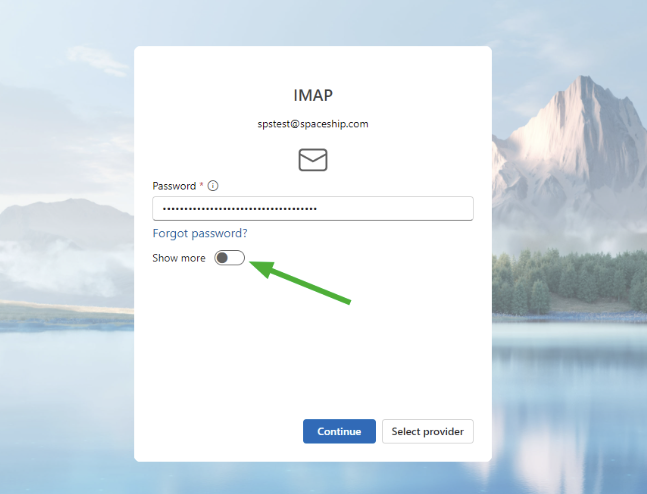
আপনি যদি আপনার অ্যাকাউন্ট IMAP হিসেবে সেটআপ করতে চান, তাহলে নিচের সার্ভার সেটিংস দিন:
ইনকামিং সেটিংস:
পাসওয়ার্ড: আপনার বর্তমান মেইলবক্স পাসওয়ার্ড;
IMAP ইনকামিং সার্ভার: mail.spacemail.com;
ইনকামিং সার্ভার পোর্ট: 993;
নিরাপদ সংযোগের ধরন: SSL/TLS।
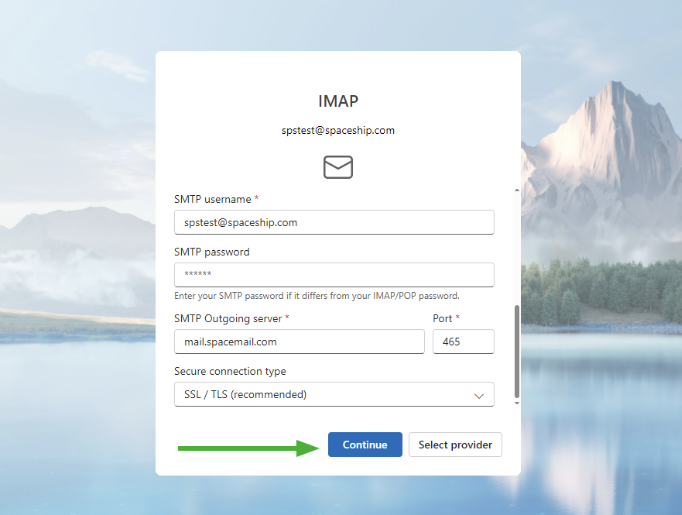
আউটগোয়িং সেটিংস:
SMTP ইউজারনেম: আপনার সম্পূর্ণ Spacemail ইমেইল ঠিকানা;
SMTP পাসওয়ার্ড: আপনার বর্তমান মেইলবক্স পাসওয়ার্ড;
SMTP আউটগোয়িং সার্ভার: mail.spacemail.com;
আউটগোয়িং সার্ভার পোর্ট: 465;
নিরাপদ সংযোগের ধরন: SSL/TLS:
সব তথ্য পূরণ হলে, ক্লিক করুন Continue।
POP3
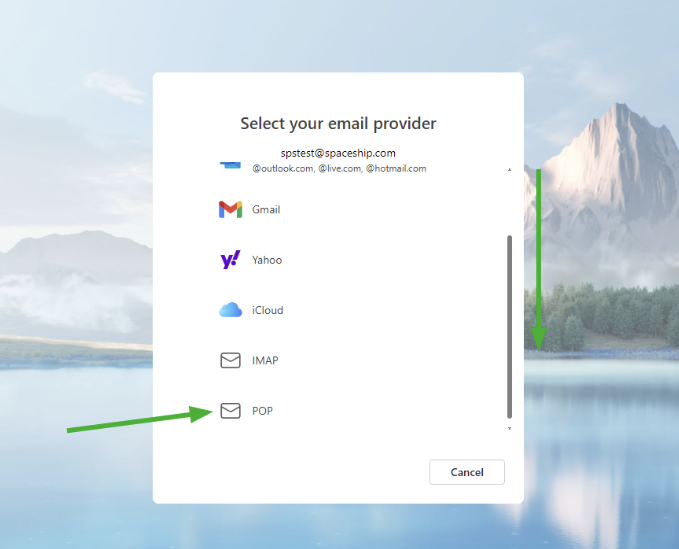
POP অ্যাকাউন্ট টাইপ নির্বাচন করতে, ক্লিক করুন Select provider:
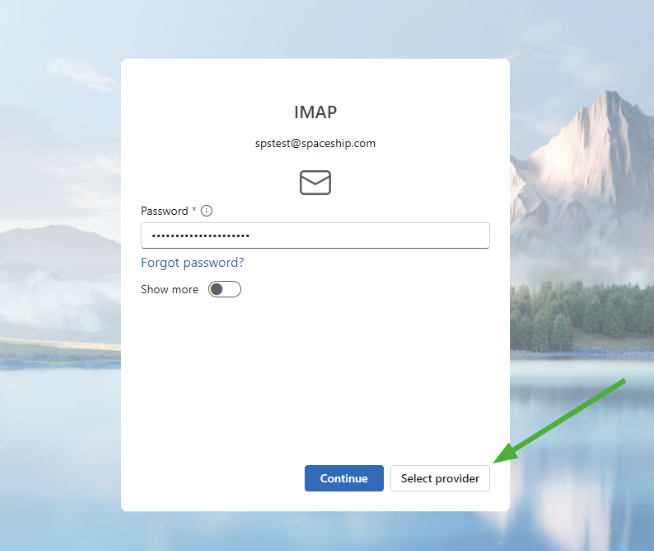
তারপর নিচে স্ক্রল করুন এবং POP নির্বাচন করুন:
পরবর্তী উইন্ডোতে, ক্লিক করুন Show more ইনকামিং/আউটগোয়িং সেটিংস দেখতে:
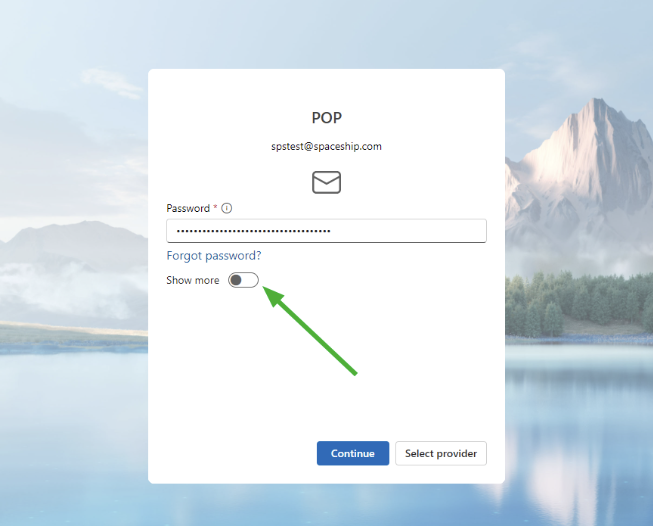
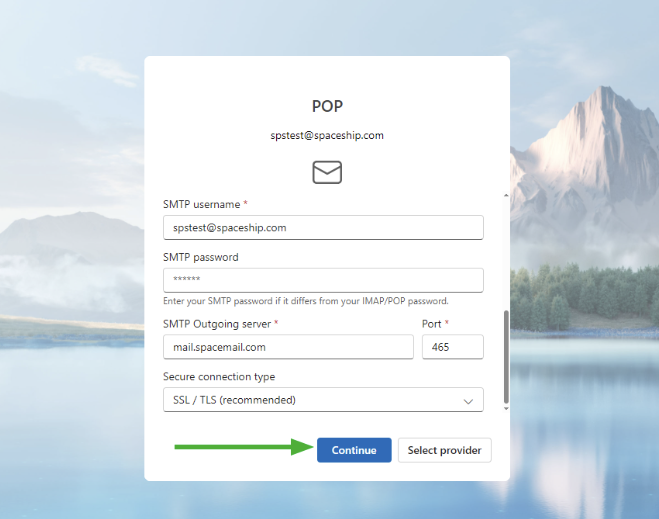
আপনি যদি আপনার অ্যাকাউন্ট POP3 হিসেবে সেটআপ করতে চান, তাহলে নিচের সার্ভার সেটিংস দিন:
ইনকামিং সেটিংস:
পাসওয়ার্ড: আপনার বর্তমান মেইলবক্স পাসওয়ার্ড;
POP ইনকামিং সার্ভার: mail.spacemail.com;
ইনকামিং সার্ভার পোর্ট: 995;
নিরাপদ সংযোগের ধরন: SSL/TLS।
আউটগোয়িং সেটিংস:
SMTP ইউজারনেম: আপনার সম্পূর্ণ Spacemail ইমেইল ঠিকানা;
SMTP পাসওয়ার্ড: আপনার বর্তমান মেইলবক্স পাসওয়ার্ড;
SMTP আউটগোয়িং সার্ভার: mail.spacemail.com;
আউটগোয়িং সার্ভার পোর্ট: 465;
নিরাপদ সংযোগের ধরন: SSL/TLS:
সব তথ্য পূরণ হলে, ক্লিক করুন Continue:
ধাপ ৫. Outlook-এর বার্তাগুলো।
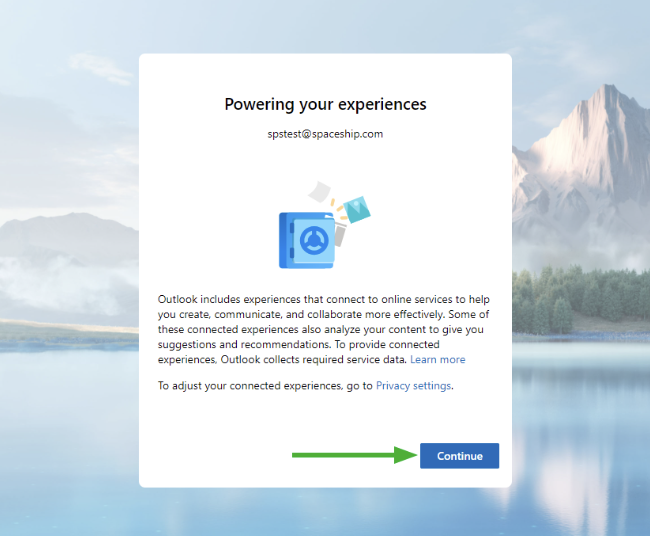
প্রোটোকল ডিটেইলস প্রবেশ করানোর পর এবং Continue বোতামে ক্লিক করার পর, Microsoft Cloud সম্পর্কে একটি বার্তা আসবে। আপনার অ্যাকাউন্ট Microsoft Cloud-এ সিঙ্ক করলে আপনার ইমেইলের একটি কপি Spacemail সার্ভার ও মাইক্রোসফটের ডেটা সেন্টারের মধ্যে সিঙ্ক হবে। সেটআপ চালিয়ে যেতে, Continue চাপুন।
এরপর, Outlook ক্লায়েন্ট একটি নতুন উইন্ডোতে যাবে যা গোপনীয়তার সাথে সম্পর্কিত। সেটআপ চালিয়ে যেতে, Next চাপুন।
Spacemail মেইলবক্স সেটআপ শেষ করতে, Outlook ক্লায়েন্ট জিজ্ঞাসা করবে সে কি উন্নতির জন্য ইউজার ডেটা সংগ্রহ করতে পারে কিনা। আপনার পছন্দ নির্বাচন করুন এবং Accept ক্লিক করুন।
শেষে, ক্লিক করুন Continue:
এখন আপনি Outlook অ্যাপ সেটআপ শেষ করেছেন, আপনি আপনার নতুন Spacemail ইমেইল ঠিকানা দিয়ে ইমেইল পাঠাতে পারবেন।
নোটসমূহ: আপনি Outlook-এ ইমেইল অ্যাকাউন্ট সেটআপ করার সময় নিম্নলিখিত ত্রুটির সম্মুখীন হতে পারেন: "কিছু ভুল হয়েছে। আবার চেষ্টা করুন। আপনাকে একটি অ্যাপ পাসওয়ার্ড লাগতে পারে।” এই ক্ষেত্রে, দয়া করে নিশ্চিত করুন আপনি সঠিক লগইন ডিটেইলস ব্যবহার করেছেন। আপনি Spacemail-এ লগইন করে আপনার Spacemail লগইন ডিটেইলস সঠিক কিনা চেক করতে পারেন webmail-এ। কোনো সমস্যা হলে, দয়া করে নিচের টিউটোরিয়াল অনুসরণ করে পাসওয়ার্ড রিসেট করুন।
নতুন ইমেইল পাঠানোর সময় আপনি নিম্নলিখিত ত্রুটির সম্মুখীন হতে পারেন: “SmtpSubmissionPermanent5XXException: Smtp submission failed. Server 'mail.spacemail.com' Port '465'. --> অপ্রত্যাশিত SMTP সার্ভার রেসপন্স। প্রত্যাশিত: 235, প্রকৃত: 535, সম্পূর্ণ রেসপন্স: 535 5.7.8 Error: authentication failed: UGFzc3dvcmQ6.” এই ক্ষেত্রে, দয়া করে নিশ্চিত করুন SMTP সেটিংসে পাসওয়ার্ডটি Spacemail মেইলবক্সের সঠিক পাসওয়ার্ডের সাথে মিলে।
কিভাবে একটি ইমেইল অ্যাকাউন্টের কনফিগারেশন আপডেট করবেন
বিদ্যমান ইমেইল অ্যাকাউন্টের কনফিগারেশন চেক বা আপডেট করতে, নিচের ধাপগুলো অনুসরণ করুন:
১. আপনার ডিভাইসে Outlook (new) অ্যাপ্লিকেশনটি খুলুন।
২. ক্লিক করুন View > View settings, তারপর Accounts ট্যাব > Manage নির্বাচন করুন:
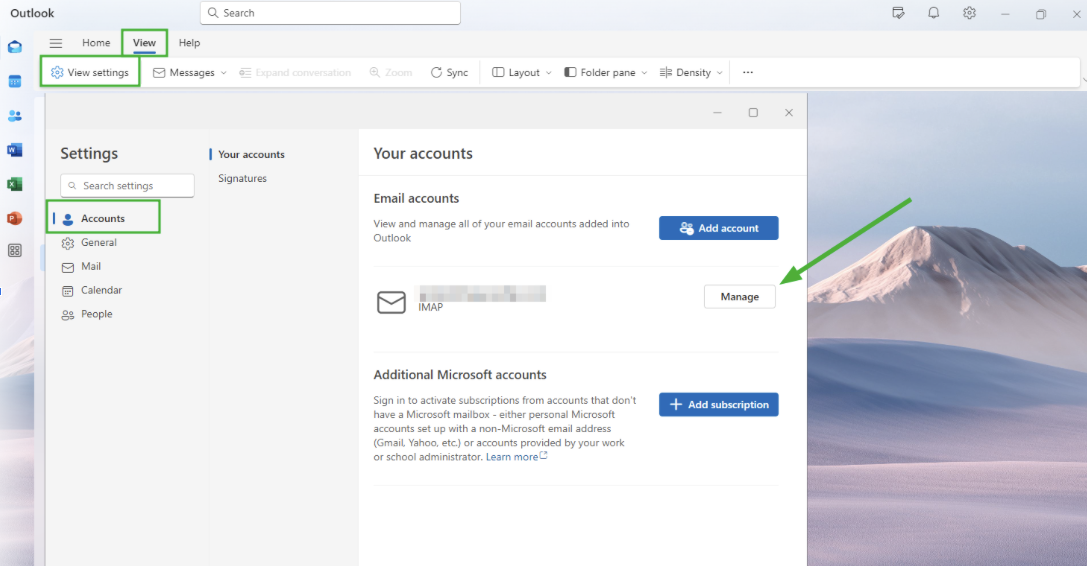
৩. স্লাইডার ব্যবহার করে পৃষ্ঠার নিচে যান, এবং আপনি Repair অপশনটি নির্বাচন করতে পারবেন:
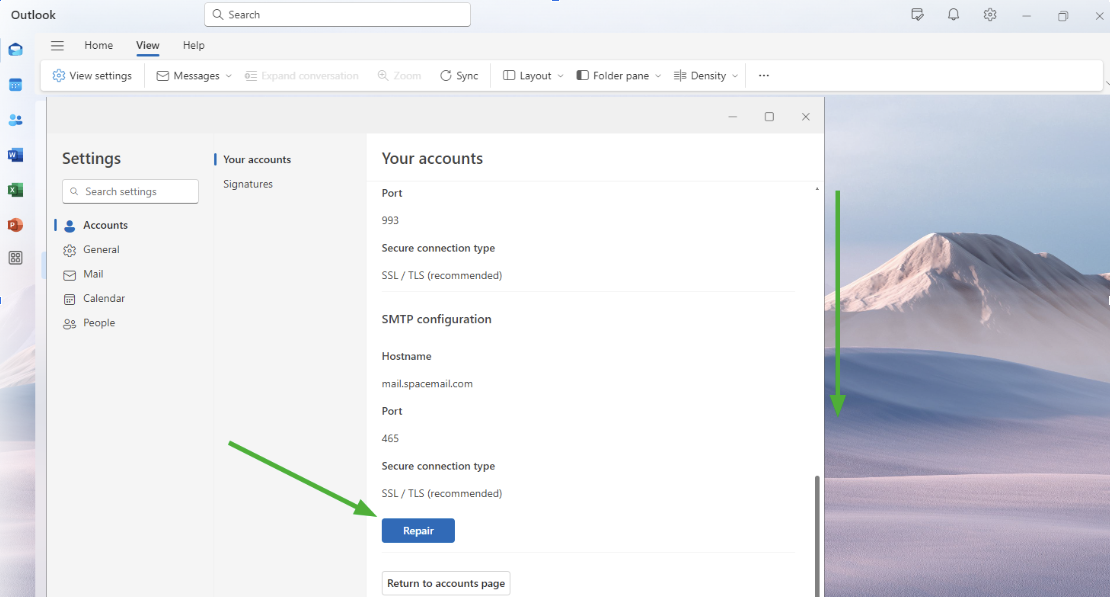
৪. পরবর্তী পৃষ্ঠায়, আপনি ইনকামিং এবং আউটগোয়িং সার্ভার সেটিংস দেখতে পাবেন।
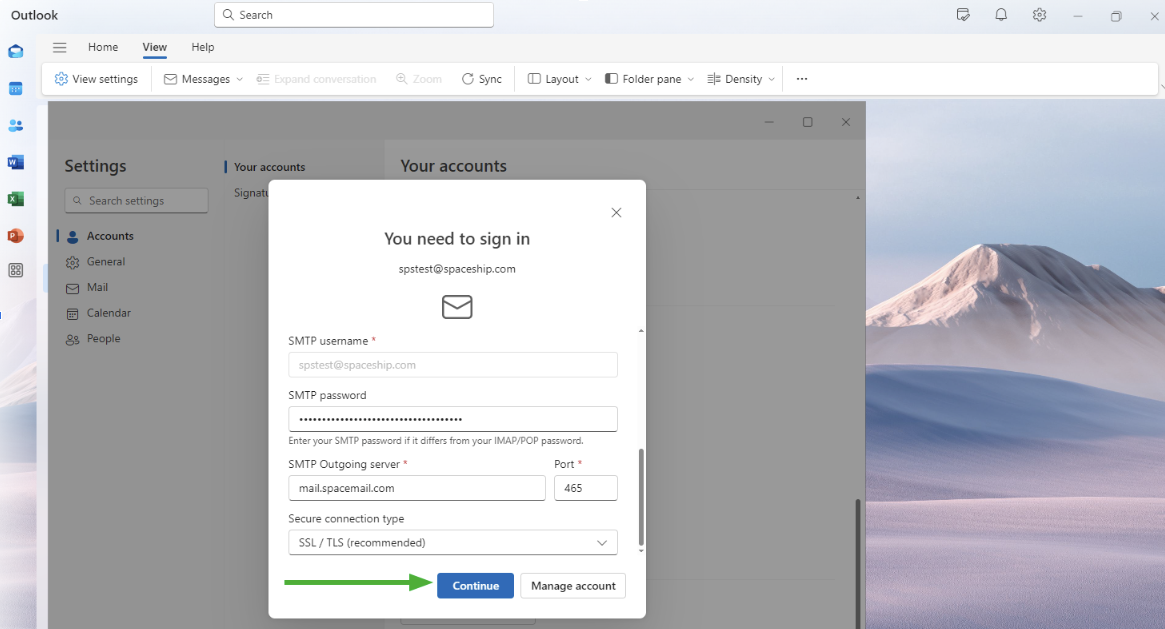
সবগুলো সঠিকভাবে সেট করা হয়েছে কিনা নিশ্চিত করুন। কোনো তথ্য ভুল থাকলে, ইনকামিং ও আউটগোয়িং মেইল কনফিগারেশনের জন্য আপডেট করুন।
৫. সব তথ্য আপডেট হলে, ক্লিক করুন Continue:
আপনার কোনো প্রশ্ন থাকলে, দয়া করে আমাদের Support Team-এর সাথে যোগাযোগ করুন।