Bagaimana cara menggunakan Spacemail dengan Gmail, Outlook, Thunderbird, atau klien email lainnya?
Anda dapat menghubungkan kotak surat Spacemail Anda ke klien email pihak ketiga mana pun pilihan Anda (Outlook, Thunderbird, Apple Mail, dll.) menggunakan protokol IMAP, POP3, dan SMTP.
Detail konfigurasi tersedia di Spacemail Manager dan webmail Spacemail Anda.
Di Spacemail Manager
Masuk ke akun Anda di sini.
Temukan langganan Spacemail yang terhubung dengan kotak surat terkait.
Klik tiga titik di samping kotak surat yang diperlukan dan pilih IMAP/POP3/SMTP.
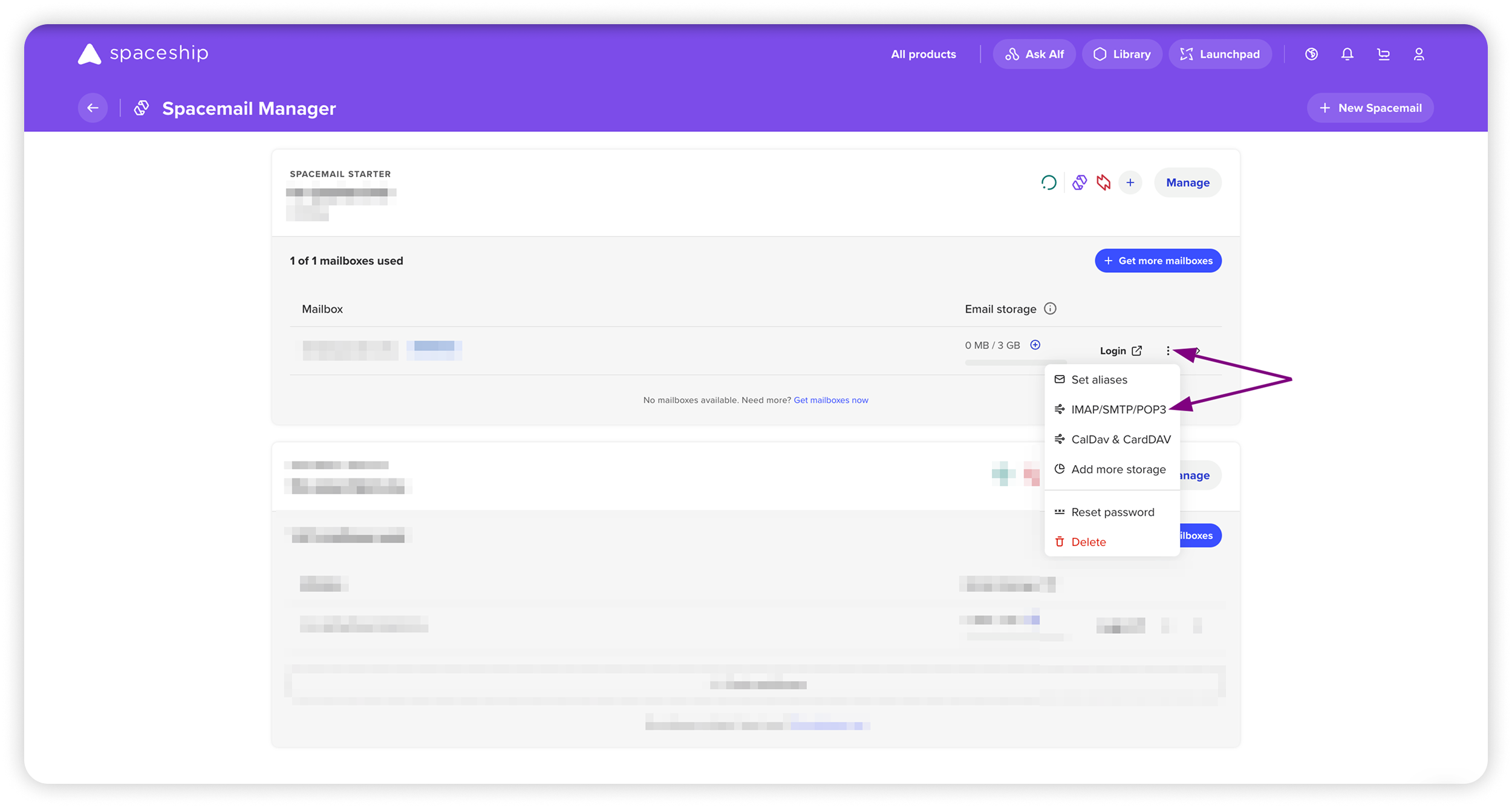
Gunakan detail konfigurasi untuk mengatur klien email.
Di Spacemail Webmail
Masuk ke Spacemail Webmail Anda.
Klik tombol Pengaturan di pojok kanan atas.
Temukan kartu IMAP/SMTP/POP3.
Klik Lihat konfigurasi untuk melihat detail pengaturan Anda.
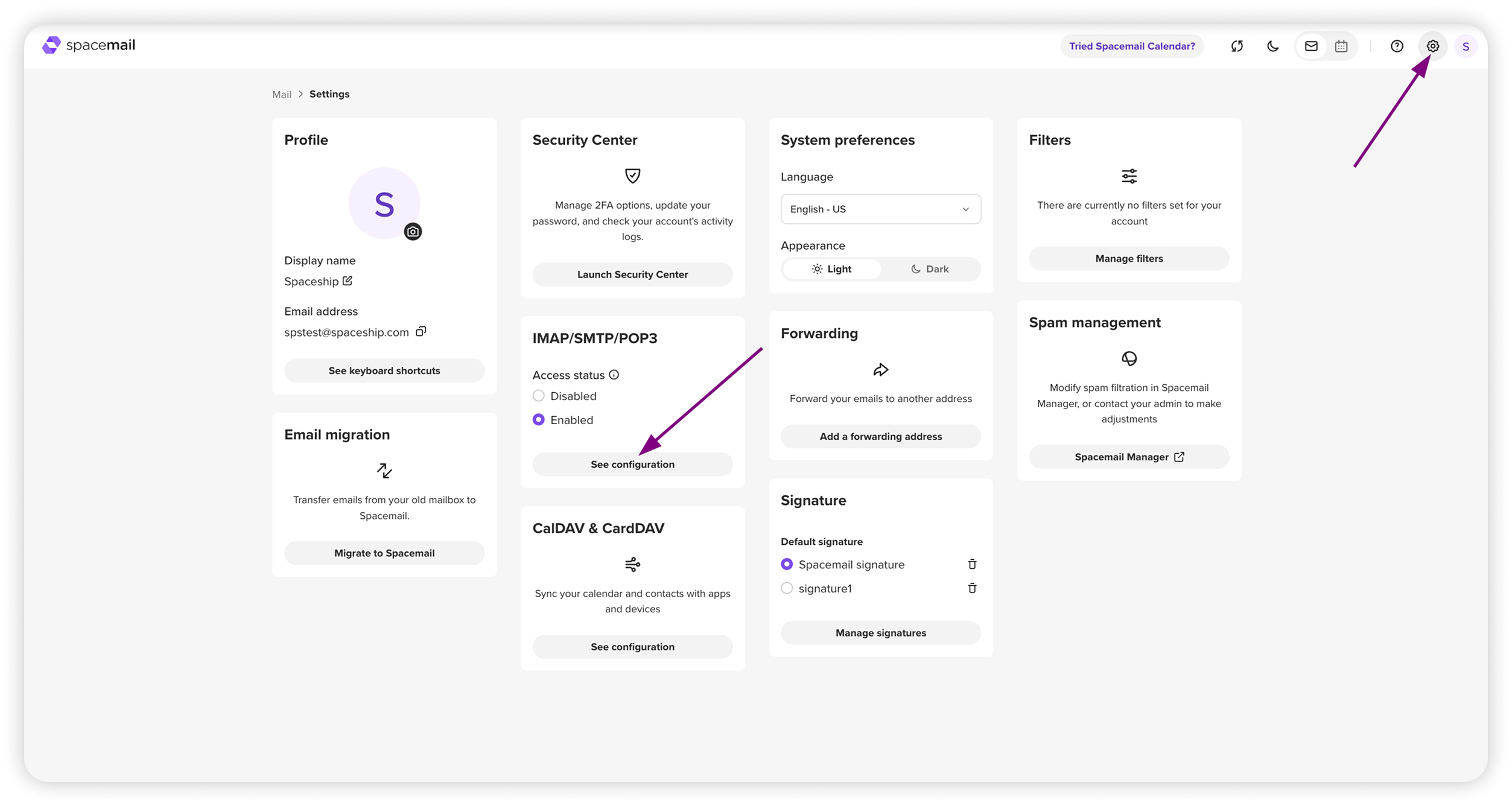
Buka klien email pilihan Anda dan masukkan informasi konfigurasi.
Catatan: Akses IMAP/SMTP/POP3 diaktifkan secara default. Anda dapat menonaktifkannya kapan saja dari Spacemail Manager atau webmail.
Detail konfigurasi umum IMAP/SMTP/POP3
Nama Pengguna: alamat Spacemail lengkap Anda
Kata Sandi: kata sandi untuk akun email ini
Jenis Server: IMAP atau POP3
Perbedaan antara IMAP dan POP3:
POP3 mengunduh email dari server ke satu perangkat dan kemudian menghapusnya dari server.
IMAP menyimpan email di server dan menyinkronkan pesan Anda di beberapa perangkat.
Kami merekomendasikan menggunakan IMAP untuk sinkronisasi yang lebih baik.
IMAP (Server Masuk)
Nama server (Host): mail.spacemail.com
Port masuk: 993
Jenis Keamanan (Enkripsi): SSL
SMTP (Server Keluar)
Nama server (Host): mail.spacemail.com
Port keluar: 465
Jenis Keamanan (Enkripsi): SSL
POP3 (Server Masuk)
Nama server (Host): mail.spacemail.com
Port masuk: 995
Jenis Keamanan (Enkripsi): SSL